MyBatis connection to seekdb
This topic describes how to use the MyBatis framework and seekdb to build an application that can perform basic operations such as creating a table, inserting data, and querying data.
Click here to download the java-oceanbase-mybatis sample project
Prerequisites
-
You have installed seekdb.
-
You have installed JDK 1.8 and Maven.
-
You have installed IntelliJ IDEA.
infoThe tool used to run the code in this topic is IntelliJ IDEA 2021.3.2 (Community Edition). You can choose a tool that suits your preferences to run the sample code.
Procedure
The following procedure is based on the Windows environment. If you are using another operating system or compiler, the procedure may vary.
- Obtain the connection string of seekdb.
- Import the
java-oceanbase-mybatisproject into IDEA. - Modify the database connection information in the
java-oceanbase-mybatisproject. - Run the
java-oceanbase-mybatisproject.
Step 1: Obtain the connection string of seekdb
-
Contact the deployment personnel or administrator of seekdb to obtain the corresponding database connection string.
mysql -hxx.xx.xx.xx -P2881 -uroot -p**** -A -
Fill in the URL with the information of the deployed seekdb.
infoThe URL information is required in the
jdbc.propertiesfile.jdbc:oceanbase://host:port/schema_name?user=$user_name&password=$passwordParameter description:
host: the IP address for connecting to seekdb. Replace it with the actual IP address. You can also use the local IP address or 127.0.0.1.port: the port for connecting to seekdb. Replace it with the actual port number. The default value is 2881. You can customize it during the deployment of seekdb.schema_name: the name of the schema to be accessed.user_name: the username specified by the-uparameter. The format is username. The default username isroot.password: the password of the account.
For more information about URL parameters, see Database URL.
Step 2: Import the java-oceanbase-mybatis project into IDEA
-
Start IntelliJ IDEA and select File > Open....

-
In the Open File or Project window that appears, select the project file and click OK to import the project file.
-
IntelliJ IDEA will automatically identify various files in the project and display the project structure, file list, module list, and dependency relationships in the Project tool window. The Project tool window is usually located on the left side of the IntelliJ IDEA interface and is open by default. If the Project tool window is closed, you can click View > Tool Windows > Project in the menu bar or press the shortcut key Alt + 1 to reopen it.
infoWhen you import a project into IntelliJ IDEA, it automatically detects the pom.xml file in the project, downloads the required dependency libraries based on the described dependencies in the file, and adds them to the project.
-
View the project.
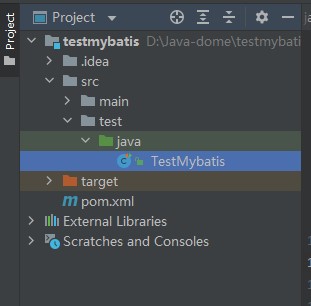
Step 3: Modify the database connection information in the java-oceanbase-mybatis project
Modify the database connection information in the jdbc.properties file based on the information obtained in Step 1: Obtain the connection string of seekdb.
Here is an example:
- The name of the database driver is
com.oceanbase.jdbc.Driver. - The IP address of seekdb is
10.10.10.1. - The access port is 2881.
- The name of the schema to be accessed is
test. - The URL extra connection properties are set to
useServerPrepStmts=true&rewriteBatchedStatements=true. - The connection account is
root. - The password is
******.
Here is the sample code:
jdbc.driver=com.mysql.cj.jdbc.Driver
jdbc.url=jdbc:oceanbase://10.10.10.1:2881/sys?useServerPrepStmts=true&rewriteBatchedStatements=true
jdbc.username=root
jdbc.password=******
Step 4: Run the java-oceanbase-mybatis project
Running path
- Find the
TestMybatis.javafile in the src > test > java directory of the project structure. - In the tool menu bar, select Run(U) > Run > TestMybatis, or click the green triangle in the upper right corner to run it directly.
- View the project's log information and output results in the IDEA console.
Running result
-
The output result of the
testUserMappermethod is as follows:User{id=2, name='update'}
User{id=3, name='insert'}
User{id=4, name='insert'}
User{id=5, name='insert'}
User{id=6, name='insert'}
User{id=7, name='insert'}
User{id=8, name='insert'}
User{id=9, name='insert'}
User{id=10, name='insert'}
usersByPage = [User{id=5, name='insert'}, User{id=6, name='insert'}, User{id=7, name='insert'}] -
The output result of the
testSqlSessionmethod is as follows:User{id=2, name='update'}
User{id=3, name='insert'}
User{id=4, name='insert'}
User{id=5, name='insert'}
User{id=6, name='insert'}
User{id=7, name='insert'}
User{id=8, name='insert'}
User{id=9, name='insert'}
User{id=10, name='insert'} -
The output result of the
testAppMappermethod is as follows:App{id=2, name='update'}
App{id=3, name='insert3'}
App{id=4, name='insert4'}
App{id=5, name='insert5'}
App{id=6, name='insert6'}
App{id=7, name='insert7'}
App{id=8, name='insert8'}
App{id=9, name='insert9'}
App{id=10, name='insert10'}
pageList = Page{count=true, pageNum=2, pageSize=3, startRow=3, endRow=6, total=9, pages=3, reasonable=false, pageSizeZero=true}[App{id=5, name='insert5'}, App{id=6, name='insert6'}, App{id=7, name='insert7'}] -
The complete output result is as follows:
User{id=2, name='update'}
User{id=3, name='insert'}
User{id=4, name='insert'}
User{id=5, name='insert'}
User{id=6, name='insert'}
User{id=7, name='insert'}
User{id=8, name='insert'}
User{id=9, name='insert'}
User{id=10, name='insert'}
usersByPage = [User{id=5, name='insert'}, User{id=6, name='insert'}, User{id=7, name='insert'}]
App{id=2, name='update'}
App{id=3, name='insert3'}
App{id=4, name='insert4'}
App{id=5, name='insert5'}
App{id=6, name='insert6'}
App{id=7, name='insert7'}
App{id=8, name='insert8'}
App{id=9, name='insert9'}
App{id=10, name='insert10'}
pageList = Page{count=true, pageNum=2, pageSize=3, startRow=3, endRow=6, total=9, pages=3, reasonable=false, pageSizeZero=true}[App{id=5, name='insert5'}, App{id=6, name='insert6'}, App{id=7, name='insert7'}]
User{id=2, name='update'}
User{id=3, name='insert'}
User{id=4, name='insert'}
User{id=5, name='insert'}
User{id=6, name='insert'}
User{id=7, name='insert'}
User{id=8, name='insert'}
User{id=9, name='insert'}
User{id=10, name='insert'}
FAQ
1. Connection timeout
If you encounter a connection timeout issue, you can configure the connection timeout parameter in the JDBC URL:
jdbc:mysql://host:port/database?connectTimeout=30000&socketTimeout=60000
2. Character set issues
To ensure correct character encoding, set the appropriate character set parameter in the JDBC URL:
jdbc:mysql://host:port/database?characterEncoding=utf8&useUnicode=true
3. SSL connection
To enable SSL connections to seekdb, add the following parameter to the JDBC URL:
jdbc:mysql://host:port/database?useSSL=true&requireSSL=true
4. Special characters in the username or password
If the username or password contains special characters (such as #), you need to URL-encode them:
String encodedPassword = URLEncoder.encode(password, "UTF-8");
When using MySQL Connector/J 8.x, ensure that the username and password do not contain the number sign (#). Otherwise, you may encounter a connection error.
Project code
Click java-oceanbase-mybatis to download the project code, which is a compressed file named java-oceanbase-mybatis.
After decompressing the file, you will find a folder named java-oceanbase-mybatis. The directory structure is as follows:
│--pom.xml
│
├─.idea
│
├─src
│  ├─main
│  │  ├─java
│  │  │  └─com
│  │  │      └─oceanbase
│  │  │          ├─mapper
│  │  │          │------IAppMapper.java
│  │  │          │------IUserMapper.java
│  │  │          │
│  │  │          └─pojo
│  │  │              │---App.java
│  │  │              └─--User.java
│  │  │
│  │  └─resources
│  │      │--jdbc.properties
│  │      │--mybatis-config.xml
│  │      │
│  │      └─com
│  │          └─oceanbase
│  │              └─mapper
│  │                  └─---IUserMapper.xml
│  │
│  └─test
│      └─java
│          └─---TestMybatis.java
│
└─target
File description:
pom.xml: the configuration file of the Maven project, which contains the dependencies, plugins, and build information of the project..idea: the directory used in the integrated development environment (IDE) to store project-related configuration information.src: the directory where the source code of the project is stored.main: the directory where the main source code and resource files are stored.java: the directory where the Java source code is stored.com: the root directory where the Java packages are stored.oceanbase: the root directory where the project is stored.mapper: the directory where the MyBatis Mapper interfaces and XML files are stored.IAppMapper.java: the file where the application data access layer interface is stored.IUserMapper.java: the file where the user data access layer interface is stored.pojo: the directory where the JavaBeans or entity classes are stored.App.java: the file where the application entity class is stored.User.java: the file where the user entity class is stored.resources: the directory where the resource files, such as configuration files and SQL files, are stored.jdbc.properties: the configuration file where the database connection information is stored.mybatis-config.xml: the file where the MyBatis configuration is stored.IUserMapper.xml: the file where the XML configuration of the user data access layer is stored.test: the directory where the test code and resource files are stored.TestMybatis.java: the file where the Java class for testing MyBatis is stored.target: the directory where the compiled class files and jar packages are stored.
pom.xml
If you only want to verify the example, you can use the default code without any modifications. You can also modify the pom.xml file as needed based on the following instructions.
The content of the pom.xml configuration file is as follows:
-
File declaration statement.
This statement declares the file as an XML file using XML version
1.0and character encodingUTF-8.Sample code:
<?xml version="1.0" encoding="UTF-8"?> -
Configure the namespaces and POM model version.
- Use
xmlnsto set the POM namespace tohttp://maven.apache.org/POM/4.0.0. - Use
xmlns:xsito set the XML namespace tohttp://www.w3.org/2001/XMLSchema-instance. - Use
xsi:schemaLocationto set the POM namespace tohttp://maven.apache.org/POM/4.0.0and the location of the POM XSD file tohttp://maven.apache.org/xsd/maven-4.0.0.xsd. - Use the
<modelVersion>element to set the POM model version used by the POM file to4.0.0.
Sample code:
<project xmlns="http://maven.apache.org/POM/4.0.0" xmlns:xsi="http://www.w3.org/2001/XMLSchema-instance"
         xsi:schemaLocation="http://maven.apache.org/POM/4.0.0 http://maven.apache.org/xsd/maven-4.0.0.xsd">
  <modelVersion>4.0.0</modelVersion>
</project> - Use
-
Configure basic information.
- Use
<groupId>to set the project identifier tocom.oceanbase.example. - Use
<artifactId>to set the project dependency tojava-oceanbase-mybatis. - Use
<version>to set the project version to1.0-SNAPSHOT.
Sample code:
<groupId>com.oceanbase.example</groupId>
<artifactId>java-oceanbase-mybatis</artifactId>
<version>1.0-SNAPSHOT</version> - Use
-
Use
<build>to define the project build process.- Use
<plugins>to specify the plugins configured in the project. - Use
<plugin>to specify a plugin configured in the project. - Use
<groupId>to set the project identifier toorg.apache.maven.plugins. - Use
<artifactId>to set the project dependency tomaven-compiler-plugin. - Use
<configuration>to specify the parameters of the configured plugin. - Use
<source>to set the compiler's source code version to 8. - Use
<target>to set the compiler's source code version to 8.
Sample code:
 <build>
     <plugins>
         <plugin>
             <groupId>org.apache.maven.plugins</groupId>
             <artifactId>maven-compiler-plugin</artifactId>
             <configuration>
                 <source>8</source>
                 <target>8</target>
             </configuration>
         </plugin>
     </plugins>
</build> - Use
-
Use
<dependencies>to define the components on which the project depends.-
Set the organization of the dependency to
com.oceanbase, the name tooceanbase-client, and the version to2.4.2.Sample code:
    <dependencies>
    <dependency>
        <groupId>com.oceanbase</groupId>
        <artifactId>oceanbase-client</artifactId>
        <version>2.4.2</version>
    </dependency>
</dependencies> -
Set the test architecture of the dependency to
junit, the name tojunit, and the version to4.10.Sample code:
    <dependencies>
    <dependency>
        <groupId>junit</groupId>
        <artifactId>junit</artifactId>
        <version>4.10</version>
    </dependency>
</dependencies> -
Set the architecture of the dependency to
org.mybatis, the name tomybatis, and the version to3.5.9.Sample code:
    <dependencies>
    <dependency>
        <groupId>org.mybatis</groupId>
        <artifactId>mybatis</artifactId>
        <version>3.5.9</version>
    </dependency>
</dependencies> -
Set the plugin of the dependency to
com.github.pagehelper, the name topagehelper, and the version to5.3.0.Sample code:
    <dependencies>
    <dependency>
        <groupId>com.github.pagehelper</groupId>
        <artifactId>pagehelper</artifactId>
        <version>5.3.0</version>
    </dependency>
    </dependencies>
-
jdbc.properties
jdbc.properties is a properties file used to store configuration information related to database connections, including the database URL, username, password, and so on. The code contains the following content:
The values of the fields in the code are directly obtained from Step 1: Obtain the seekdb connection string.
jdbc.driver: the class name of the database driver program, used to load the database driver program.jdbc.url: the URL of the database, used to specify the database to connect to.jdbc.username: the username of the database, used to verify the database connection.jdbc.password: the password of the database, used to verify the database connection.
Sample code:
jdbc.driver=com.mysql.cj.jdbc.Driver
jdbc.url=jdbc:mysql://host:port/TEST?useServerPrepStmts=true&rewriteBatchedStatements=true
jdbc.username=user_name
jdbc.password=******
mybatis-config.xml
The mybatis-config.xml file is used to configure global properties and plugins of the MyBatis framework.
The code of the mybatis-config.xml file mainly includes the following parts:
-
File declaration.
This declaration indicates that the file is an XML file and that the current document is a MyBatis configuration file. It specifies that the XML version is
1.0, the character encoding isUTF-8, the version number is 3.0, the language is English, and the DTD (Document Type Definition) file provided by the MyBatis official website is used for validation.The declaration includes the following parts:
version: specifies the version of the XML file.encoding: specifies the encoding method of the XML file.DOCTYPE: declares the type as a document type declaration.configuration: specifies the document type as a MyBatis configuration file.PUBLIC: specifies the document type as a public document type.mybatis.org: indicates the MyBatis official website.DTD Config 3.0: indicates the version number of the MyBatis configuration file.EN: indicates that the language of the document type is English.
Sample code:
<?xml version="1.0" encoding="UTF-8"?>
<!DOCTYPE configuration PUBLIC "-//mybatis.org//DTD Config 3.0//EN" "http://mybatis.org/dtd/mybatis-3-config.dtd"> -
Specify the path and file name of the property file to be loaded.
<properties resource="jdbc.properties"></properties> -
Configure the global settings of MyBatis.
The content of the global settings of MyBatis includes the following parts:
setting: used to configure individual settings, such as cache and log.cacheEnabled: used to enable or disable the cache feature, set totrue.lazyLoadingEnabled: used to enable or disable the lazy loading feature, set totrue.aggressiveLazyLoading: used to enable or disable the aggressive lazy loading feature, set totrue.multipleResultSetsEnabled: used to configure whether to enable support for multiple result sets, set totrue.useColumnLabel: used to configure whether to use column labels as column names in the result set, set totrue.useGeneratedKeys: used to configure whether to use automatically generated primary keys, set totrue.autoMappingBehavior: used to configure the handling behavior of auto-mapping, set toPARTIAL.defaultExecutorType: used to configure the default executor type, set toSIMPLE.mapUnderscoreToCamelCase: used to configure whether to convert underscores in database column names to camel case in Java object property names, set totrue.localCacheScope: used to configure the scope of the local cache, set toSESSION.jdbcTypeForNull: used to configure the JDBC type to be used when handling null values, set toNULL.
infoThe child elements of the settings element are optional and can be added or removed as needed.
Sample code:
<settings>
    <!-- Enable or disable caching for global mappers. -->
    <setting name="cacheEnabled" value="true"/>
    <!-- Enable or disable lazy loading globally. When disabled, all associated objects are loaded immediately. -->
    <setting name="lazyLoadingEnabled" value="true"/>
    <!-- When enabled, objects with delayed loading properties will fully load any properties when called. Otherwise, each attribute will be loaded as needed. -->
    <setting name="aggressiveLazyLoading" value="true"/>
    <!-- Allow a single SQL statement to return multiple datasets (depending on driver compatibility) default: true -->
    <setting name="multipleResultSetsEnabled" value="true"/>
    <!-- Can column aliases be used (depending on driver compatibility) default: true -->
    <setting name="useColumnLabel" value="true"/>
    <!-- Allow JDBC to generate primary keys. Drive support is required. If set to true, this setting will force the use of the generated primary key, and some drives may not be compatible but can still be executed. default:false -->
    <setting name="useGeneratedKeys" value="true"/>
    <!-- Specify how MyBatis automatically maps the columns of the data base table NONE: Not Implicit PART: Partial FULL: All -->
    <setting name="autoMappingBehavior" value="PARTIAL"/>
    <!-- This is the default execution type (SIMPLE: simple; REUSE: executor may repeatedly use prepared statements; BATCH: executor can repeatedly execute statements and batch updates) -->
    <setting name="defaultExecutorType" value="SIMPLE"/>
    <!-- Convert fields using camel naming. -->
    <setting name="mapUnderscoreToCamelCase" value="true"/>
    <!-- Set the local cache range session: there will be data sharing statement: statement range (so there will be no data sharing) defalut: session -->
    <setting name="localCacheScope" value="SESSION"/>
    <!-- When the JDBC type is set to null, some drivers need to specify a value, default: Other, and there is no need to specify a type when inserting null values -->
    <setting name="jdbcTypeForNull" value="NULL"/>
</settings> -
Configure the plugins of MyBatis.
The content of the plugins of MyBatis includes the following parts:
plugin: used to configure a single plugin.property: used to specify the properties of the plugin.interceptor: used to specify the implementation class of the plugin.helperDialect: used to specify the selected database.offsetAsPageNum: indicates whether to use the offset parameter as the pageNum parameter.rowBoundsWithCount: indicates whether to perform a count query.pageSizeZero: indicates whether to support queries with a pageSize of 0.reasonable: indicates whether to enable reasonable queries.params: indicates the mapping relationship between the parameter name and value used to pass pagination parameters.supportMethodsArguments: indicates whether to support using method parameters to pass pagination parameters.returnPageInfo: indicates the return value type.
Sample code:
<plugin interceptor="com.github.pagehelper.PageInterceptor">
   <!-- this parameter indicates which database to connect to -->
   <!--MySQLMode dialect<property name="helperDialect" value="mysql"/>-->
   <!--OracleMode dialect -->
   <property name="helperDialect" value="mysql"/>
   <!-- This parameter defaults to false. When set to true, the first parameter offset of RowBounds will be used as the pageNum page number, similar to the pageNum effect in startPage -->
   <property name="offsetAsPageNum" value="true"/>
   <!-- This parameter defaults to false, and when set to true, using RowBounds pagination will result in a count query -->
   <property name="rowBoundsWithCount" value="true"/>
   <!-- When set to true, if pageSize=0 or RowBounds. limit=0, all results will be queried (equivalent to not executing a pagination query, but the returned results are still of type Page) -->
   <property name="pageSizeZero" value="true"/>
   <!-- Version 3.3.0 is available - pagination parameter rationalization is disabled by default as false. When rationalization is enabled, if pageNum<1, the first page will be queried, and if pageNum>pages, the last page will be queried. Rationalization of paging parameters. When rationalization is disabled, if pageNum<1 or pageNum>pages returns empty data -->
   <property name="reasonable" value="false"/>
   <!-- Version 3.5.0 is available - In order to support the startPage (Object params) method, a 'params' parameter has been added to configure parameter mapping, which can be used to retrieve values from Map or ServletRequest. PageNum, pageSize, count, pageSizeZero, reasonable, orderBy can be configured. If mapping is not configured, the default value will be used. If you do not understand the meaning, do not copy this configuration casually -->
   <property name="params" value="pageNum=start;pageSize=limit;"/>
   <!-- Support passing paging parameters through Mapper interface parameters -->
   <property name="supportMethodsArguments" value="true"/>
   <!-- Always always returns PageInfo type, check to check if the return type is PageInfo, and none returns Page -->
   <property name="returnPageInfo" value="check"/>
</plugin> -
Configure the environment of MyBatis. The content of the environment of MyBatis includes the following parts:
environment: used to configure a single environment.transactionManager: used to specify the implementation class of the transaction manager.dataSource: used to specify the implementation class of the data source.property: specifies the class name of the database driver.
infoIn other configuration elements of MyBatis, you can use
${}placeholders to reference the data source, transaction manager, and executor configured in the environment.Sample code:
<environments default="development">
    <environment id="development">
      <transactionManager type="JDBC"/>
        <dataSource type="POOLED">
            <property name="driver" value="${jdbc.driver}"/>
            <property name="url" value="${jdbc.url}"/>
            <property name="username" value="${jdbc.username}"/>
            <property name="password" value="${jdbc.password}"/>
        </dataSource>
    </environment>
</environments> -
Configure the mapper of MyBatis.
The common elements of the mapper of MyBatis are as follows:
- resource: used to specify the path and file name of the XML configuration file of the mapper.
- class: used to specify the fully qualified name of the Java class of the mapper.
infoIf you use an XML configuration file, you need to specify the path and file name of the XML file in the mapper element. If you use a Java interface, you need to specify the fully qualified name of the Java class in the mapper element.
Sample code:
<mappers>
  <!-- IUserMapper.xml mapping file -->
  <mapper resource="com/alipay/oceanbase/mapper/IUserMapper.xml"></mapper>
  <!-- IAppMapper mapping class -->
  <mapper class="com.oceanbase.mapper.IAppMapper"></mapper>
</mappers>
Introduction to the IUserMapper.xml file
The IUserMapper.xml file is a mapping file that defines SQL statements related to the user object. The file defines a namespace named IUserMapper to store SQL statements related to the user object.
If you want to verify the example, use the default code without any modifications. If you need to modify it, adjust it based on your specific requirements.
The IUserMapper.xml file contains the following main sections:
-
File declaration statements. The XML declaration specifies the version and encoding of the XML file. The DTD declaration introduces the MyBatis DTD file. Sample code:
<?xml version="1.0" encoding="UTF-8"?>
<!DOCTYPE mapper
     PUBLIC "-//mybatis.org//DTD Mapper 3.0//EN"
"http://mybatis.org/dtd/mybatis-3-mapper.dtd"> -
Configure the mapping relationship with the
IUserMapper.javafile.- Define the namespace of the
Mapperinterface to correspond with theMapperinterface in the Java code. - Create an SQL statement named
insertUserto insert a record into thetest_usertable, including theidandnamefields, with values#{id}and#{name}respectively. TheparameterTypeattribute specifies the parameter type ascom.oceanbase.pojo.User. - Create an SQL statement named
deleteUserto delete a record from thetest_usertable based on the value of theidfield, which is#{id}. - Create an SQL statement named
updateUserto update a record in thetest_usertable, setting thenamefield to#{name}based on the value of theidfield, which is#{id}. - Create an SQL statement named
selectUsersto query all user records from thetest_usertable. - Create an SQL statement named
selectUserByPageto query user objects from thetest_usertable for a specified page. This involves using subqueries and therownumfield for pagination.#{pageNum}and#{pageSize}represent the current page number and the number of records per page, respectively.
Sample code:
<?xml version="1.0" encoding="UTF-8"?>
<!DOCTYPE mapper
        PUBLIC "-//mybatis.org//DTD Mapper 3.0//EN"
        "http://mybatis.org/dtd/mybatis-3-mapper.dtd">
<mapper namespace="com.oceanbase.mapper.IUserMapper">
    <insert id="insertUser" parameterType="com.oceanbase.pojo.User">
        INSERT INTO test_user (id,name) VALUES (#{id},#{name})
    </insert>
    <delete id="deleteUser" parameterType="long">
        DELETE FROM test_user WHERE id = #{id}
    </delete>
    <update id="updateUser" parameterType="com.oceanbase.pojo.User">
        UPDATE test_user SET name = #{name} WHERE id = #{id}
    </update>
    <select id="selectUsers" resultType="com.oceanbase.pojo.User">
        SELECT id,name FROM test_user
    </select>
    <!--    There are two ways to paginate queries: 1. Use the pagehelper plugin; 2. Use SQL statements to paginate  -->
    <!-- SQL statement pagination: Oracle mode does not support the limit keyword, and instead uses the unique field 'rownum'-->
    <select id="selectUserByPage" resultType="com.oceanbase.pojo.User">
        select id,name from ( select row_.*, rownum rownum_ from ( select * from test_user ) row_ where rownum
        <![CDATA[ <= ]]>  #{pageNum} * #{pageSize} ) where rownum_ <![CDATA[ >]]>  ( #{pageNum}- 1) * #{pageSize}
    </select>
</mapper> - Define the namespace of the
Introduction to the IAppMapper.java file
The IAppMapper.java file is used to define SQL mapping relationships.
The IAppMapper.java file contains the following main sections:
-
Define the
Mapperpackage.Declare the package name of the current file as
com.oceanbase.mapper. TheMapperpackage contains the following interfaces and classes:Appinterface: Represents the mapping between a database table and data read/write operations.org.apache.ibatis.annotations.*: Used to import MyBatis annotation classes.java.util.List: Used to import theListclass from thejava.utilpackage. Sample code:
package com.oceanbase.mapper;
import com.oceanbase.pojo.App;
import org.apache.ibatis.annotations.*;
import java.util.List; -
Define the
IAppMapperinterface. TheIAppMapperinterface is used to define theMapperinterface in MyBatis. TheMapperinterface defines SQL mapping relationships and implements database operations such as insert, update, delete, and query. Specifically, theIAppMapperinterface defines methods for inserting, updating, deleting, and querying data in thetest_apptable, including:@Insertmethod: Used to insert data into the database.@Updatemethod: Used to update data in the database.@Deletemethod: Used to delete data from the database.@Selectmethod: Used to query data from the database.@Resultsmethod: Represents the mapping relationship of query results, used to map fields in the query result to properties of a Java object. Database operations include:
-
Insert data Map the App object to a record in the
test_apptable. The property values of the App object are represented using#{property name}as placeholders. TheIntegertype return value represents the automatically generated ID returned after the SQL statement inserts data, which corresponds to the ID field in thetest_apptable.@Insert("insert into test_app(id,name) values(#{id},#{name})")
Integer insertApp(App app); -
Delete data Delete data with an id equal to
#{id}from thetest_apptable.@Delete("delete from test_app where id =#{id}")
Integer deleteApp(Long id); -
Update data Modify records in the
test_apptable by performing an update operation.@Update("update test_app set name= #{name} where id = #{id}")
Integer updateApp(App user); -
Query and map data Query all data from the
test_apptable. Use the@Resultsand@Resultannotations to map the query results to theidandnameproperties of the App object. Finally, return a list of App objects.@Update("update test_app set name= #{name} where id = #{id}")
Integer updateApp(App user);
@Results({
@Result(id = true, column = "id", property = "id"),
@Result(column = "name", property = "name")
})
List<App> selectApps();
Sample code:
package com.oceanbase.mapper;
import com.oceanbase.pojo.App;
import org.apache.ibatis.annotations.*;
import java.util.List;
public interface IAppMapper {
@Insert("insert into test_app(id,name) values(#{id},#{name})")
Integer insertApp(App app);
@Delete("delete from test_app  where id =#{id}")
Integer deleteApp(Long id);
@Update("update test_app set name= #{name} where id = #{id}")
Integer updateApp(App user);
@Select("select * from test_app")
@Results({
@Result(id = true, column = "id", property = "id"),
@Result(column = "name", property = "name")
})
List<App> selectApps();
}
Introduction to the IUserMapper.java file
The IUserMapper.java file is used to define database operation methods.
The IUserMapper.java file contains the following main sections:
-
Reference other classes and interfaces.
Declare the interfaces and classes included in the current file:
Userclass: Represents the user object.org.apache.ibatis.annotations.Paramclass: A parameter annotation in the MyBatis framework.Listinterface: Represents a list type. Sample code:
package com.oceanbase.mapper;
import com.oceanbase.pojo.User;
import org.apache.ibatis.annotations.Param;
import java.util.List; -
Define the
IUserMapperinterface.Define an interface named
IUserMapperthat includes methods for inserting, deleting, updating, and querying user data, as well as methods for paginated queries. UseJavaDoccomments and the@Paramannotation to improve code readability and maintainability. Sample code:public interface IUserMapper {
Integer insertUser(User user);
Integer deleteUser(Long id);
Integer updateUser(User user);
List<User> selectUsers();
public List<User> selectUserByPage(@Param("user") User user, @Param("pageNum") Integer pageNum,
@Param("pageSize") Integer pageSize);
}
App.java
The App.java file is used to define the App application object. It contains two attributes, id and name. The class also defines methods for accessing the attributes, a constructor, and a toString method for converting the object to a string.
The App.java file contains the following parts:
- Define the
pojopackage. Declare the package name of the current file ascom.oceanbase.pojo. - Define the
Appclass.- Define a class
Appwith two private attributes,idandname, and a no-argument constructorpublic App(){}. - Define a constructor
public App(Long id, String name)to create an application object with the specifiedidandname. - Define the
getId,setId,getName, andsetNamemethods to get and set the application name. ThesetNamemethod returns the name of the application. - Override the
toStringmethod to convert the application object to a string representation for easier output and debugging.
- Define a class
Sample code:
package com.oceanbase.pojo;
public class App {
private Long id;
private String name;
public App() {
}
public App(Long id, String name) {
this.id = id;
this.name = name;
}
public Long getId() {
return id;
}
public void setId(Long id) {
this.id = id;
}
public String getName() {
return name;
}
public void setName(String name) {
this.name = name;
}
@Override
public String toString() {
return "App{" +
"id=" + id +
", name='" + name + '\'' +
'}';
}
}
User.java
The User.java file is used to define the user object. It contains two attributes, id and name. The class also defines methods for accessing the attributes, a constructor, and a toString method for converting the object to a string.
The creation of this class is similar to that of the App.java file.
Sample code:
package com.oceanbase.pojo;
public class User {
private Long id;
private String name;
public User() {
}
public User(Long id, String name) {
this.id = id;
this.name = name;
}
public Long getId() {
return id;
}
public void setId(Long id) {
this.id = id;
}
public String getName() {
return name;
}
public void setName(String name) {
this.name = name;
}
@Override
public String toString() {
return "User{" +
"id=" + id +
", name='" + name + '\'' +
'}';
}
}
Introduction to TestMyBatis.java
TestMyBatis.java is used to demonstrate how to perform data operations using MyBatis. It tests the basic features of the MyBatis framework, the execution of SQL statements, the calling method of Mapper interfaces, and the parameters and return values of SQL statements.
- Import other classes and interfaces.
Import the following classes and interfaces:
IAppMapperinterface: defines SQL statements related to App objects.IUserMapperinterface: defines SQL statements related to User objects.Appclass: App object, used to test the execution of SQL statements.Userclass: User object, used to test the execution of SQL statements.PageHelperplugin: implements the pagination query feature.PageInfoplugin: encapsulates the results of the pagination query.Resourcesclass: loads the MyBatis configuration file.SqlSessionclass: executes SQL statements and manages transactions.SqlSessionFactoryclass: creates a SqlSession object.SqlSessionFactoryBuilderclass: creates a SqlSessionFactory object.org.junit.Test: annotation of the JUnit testing framework, used to mark test methods.IOExceptionclass: represents errors during input and output operations.SQLExceptionclass: represents errors during SQL operations.Statementinterface: executes SQL statements and returns results.java.util.Listinterface: represents an ordered collection where elements can be repeated.
Sample code:
import com.oceanbase.mapper.IAppMapper;
import com.oceanbase.mapper.IUserMapper;
import com.oceanbase.pojo.App;
import com.oceanbase.pojo.User;
import com.github.pagehelper.PageHelper;
import com.github.pagehelper.PageInfo;
import org.apache.ibatis.io.Resources;
import org.apache.ibatis.session.SqlSession;
import org.apache.ibatis.session.SqlSessionFactory;
import org.apache.ibatis.session.SqlSessionFactoryBuilder;
import org.junit.Test;
import java.io.IOException;
import java.sql.SQLException;
import java.sql.Statement;
import java.util.List;
- Define the
testUserMappermethod.
The testUserMapper method is used to test the execution of SQL statements defined in the Mapper interface of the User object.
- Use the
build()method of theSqlSessionFactoryBuilderclass to create aSqlSessionFactoryinstance. It is used to manage the creation and destruction ofSqlSessioninstances. - Use the
openSession()method of theSqlSessionFactoryclass to create aSqlSessioninstance. It can execute various SQL statements, including queries, inserts, updates, and deletions. - Use the
getConnection()method of theSqlSessioninstance to obtain aConnectioninstance. It can execute various database operations. - Use the
createStatement()method of theConnectioninstance to create aStatementinstance. Execute SQL statements in sequence. - Use the
execute()method of theStatementobject to execute the SQL statement that deletes thetest_usertable. - Use the
execute()method of theStatementobject to create atest_usertable. The table contains two fields: one isid, of typenumber(20), which is the primary key; the other isname, of typevarchar2(100). - Use the
getMapper()method of theSqlSessioninstance to obtain an instance of theIUserMapperinterface. Define various database operation methods. - Use a
forloop to insert 10 records into thetest_usertable. In each iteration, create a new User object, use theinsertUser()method of theMapperinterface to perform the insert operation. The result of the insert operation is stored in theinsertResultvariable. - Perform delete, update, and query operations on the data in the
test_usertable, and finally use theforEach()method to print the information of each user in the user list. - Create a user named
insert, use theselectUserByPage()method to query all user data with the name "insert" in thetest_usertable, and return the user list of the specified page. The query is for page 2, with 3 records displayed per page. Print these user data to the console. Close theStatementandSqlSessioninstances, commit the transaction, and release resources.
Sample code:
public void testUserMapper() throws SQLException, IOException {
//mybatis xml usecases
SqlSessionFactory sqlSessionFactory = new SqlSessionFactoryBuilder().build(Resources.getResourceAsStream("mybatis-config.xml"));
SqlSession sqlSession = sqlSessionFactory.openSession();
Statement statement = sqlSession.getConnection().createStatement();
try {
statement.execute("drop table test_user");
} catch (SQLException ex) {
} finally {
statement.execute("create table test_user(id number(20) primary key,name varchar2(100))");
}
IUserMapper mapper = sqlSession.getMapper(IUserMapper.class);
//insert 10 users
for (int i = 1; i <= 10; i++) {
User user = new User((long) i, "insert");
Integer insertResult = mapper.insertUser(user);
}
//delete id==1
Integer deleteResult = mapper.deleteUser(1L);
//update id==2L name=update
User updateUser = new User(2L, "update");
Integer updateResult = mapper.updateUser(updateUser);
//selectUsers query all
List<User> userList = mapper.selectUsers();
userList.forEach(System.out::println);
//selectUsersByPage:use the rownum keyword in SQL statements to manually perform pagination queries,
// example: data on page 2 (3 items per page)
User user = new User();
user.setName("insert");
List<User> usersByPage = mapper.selectUserByPage(user, 2, 3);
System.out.println("usersByPage = " + usersByPage);
statement.close();
sqlSession.commit();
sqlSession.close();
}
- Define the
testSqlSessionmethod.
The testSqlSession method is used to test the basic features of the SqlSession object, including executing SQL statements, committing transactions, and closing the SqlSession object.
- Use the
build()method of theSqlSessionFactoryBuilderclass to create aSqlSessionFactoryinstance. This instance is used to manage the creation and destruction ofSqlSessioninstances. - Use the
openSession()method of theSqlSessionFactoryclass to create aSqlSessioninstance. This instance can execute various SQL statements, including queries, inserts, updates, and deletes. - Use the
getConnection()method of theSqlSessioninstance to obtain aConnectioninstance. This instance can execute various database operations. - Use the
createStatement()method of theConnectioninstance to create aStatementinstance. Execute SQL statements in sequence. - Use the
execute()method of theStatementobject to execute an SQL statement to delete thetest_usertable. - Use the
execute()method of theStatementobject to create thetest_usertable. This table contains two fields: one isid, of typenumber(20), which serves as the primary key; the other isname, of typevarchar2(100). - Use a
forloop to insert 10 records into thetest_usertable. In each iteration of the loop, create a new User object, call theinsertUser()method of theMapperinterface, and execute the insert operation. The result of the insert operation is stored in theinsertResultvariable. - Use the
delete()method of thesqlSessionobject to execute the delete operation. Set the delete condition by passing the parameter 1L. The result of the delete operation is stored in thedeleteResultvariable. - Use the
sqlSessionobject to execute a database update operation. Create a User object, call theupdatemethod, and pass the SQL statement identifier and parameter object to complete the update operation. The specific SQL statements and parameter mappings can be found in the XML configuration file of the "com.oceanbase.mapper.IUserMapper" interface. The result of the update operation is stored in theupdateResultvariable. - Use the
openSession()method of theSqlSessionFactoryclass to create aSqlSessioninstance. Use this instance to execute a query operation and store the query results in theuserListvariable. Finally, use theforEachmethod to traverseuserListand output it to the console. - Close the
Statementobject in the database connection by callingstatement.close(). Then, commit the transaction by callingsqlSession.commit()to persist all modifications to the database. Finally, close theSqlSessionobject by callingsqlSession.close()to release the related resources and close the connection to the database.
Sample code:
public void testSqlSession() throws SQLException, IOException {
//SqlSession usecases
SqlSessionFactory sqlSessionFactory = new SqlSessionFactoryBuilder().build(Resources.getResourceAsStream("mybatis-config.xml"));
SqlSession sqlSession = sqlSessionFactory.openSession();
Statement statement = sqlSession.getConnection().createStatement();
try {
statement.execute("drop table test_user");
} catch (SQLException ex) {
} finally {
statement.execute("create table test_user(id number(20) primary key,name varchar2(100))");
}
//insert
for (int i = 1; i <= 10; i++) {
User user = new User((long) i, "insert");
//Integer insertResult = mapper.insertUser(user);
int insertResult = sqlSession.insert("com.oceanbase.mapper.IUserMapper.insertUser", user);
}
//delete
int deleteResult = sqlSession.delete("com.oceanbase.mapper.IUserMapper.deleteUser", 1L);
//update
User updateUser = new User(2L, "update");
int updateResult = sqlSession.update("com.oceanbase.mapper.IUserMapper.updateUser", updateUser);
//selectUsers
List<User> userList = sqlSession.selectList("com.oceanbase.mapper.IUserMapper.selectUsers", null);
userList.forEach(System.out::println);
//System.out.println("userList = " + userList);
statement.close();
sqlSession.commit();
sqlSession.close();
}
- Define the
testAppMappermethod.
The testAppMapper method is used to test the features of the AppMapper.
- Use the
build()method of theSqlSessionFactoryBuilderclass to create aSqlSessionFactoryinstance. This instance is used to manage the creation and destruction ofSqlSessioninstances. - Use the
openSession()method of theSqlSessionFactoryclass to create aSqlSessioninstance. This instance can execute various SQL statements, including queries, inserts, updates, and deletes. - Use the
getConnection()method of theSqlSessioninstance to obtain aConnectioninstance. This instance can execute various database operations. - Use the
createStatement()method of theConnectioninstance to create aStatementinstance. Execute SQL statements in sequence. - Use the
execute()method of theStatementobject to execute an SQL statement to delete thetest_apptable. - Use the
execute()method of theStatementobject to create thetest_apptable. This table contains two fields: one isid, of typenumber(20), which serves as the primary key; the other isname, of typevarchar2(100). - Use the
getMapper()method of theSqlSessioninstance to obtain an instance of theIAppMapperinterface. Define various database operation methods. - Use a
forloop to insert 10 records into thetest_apptable. In each iteration of the loop, create a new App object, call theinsertApp()method of theMapperinterface, and execute the insert operation. The result of the insert operation is stored in theinsertResultvariable. - Use the
delete()method of themapperobject to execute the delete operation. Set the delete condition by passing the parameter1L. The result of the delete operation is stored in thedeleteResultvariable. - Use the
mapperobject to execute a database update operation. Create an App object, call theupdatemethod, and pass the SQL statement identifier and parameter object to complete the update operation. - Create an
Appobject namedupdateAppwithidset to2Landnameset to "update". - Call the
updateAppmethod of themapperobject and pass theupdateAppobject to execute the update operation. - Call the
commitmethod of thesqlSessionobject to commit the database transaction. - Call the
selectAppsmethod of themapperobject to query all App objects. Use theforEachmethod to traverseuserListand output it to the console. - Call the
startPagemethod of thePageHelperobject and pass the page number and number of records per page to set the pagination parameters. Query allAppobjects and return aListobject containing allAppobjects. - Call the
getListmethod of thePageInfoobject to obtain the list of App objects after pagination. Use theSystem.out.printlnmethod to print and output the list of App objects after pagination. - Close the
SqlSessionobject by callingsqlSession.close()to release the related resources.
Sample code:
public void testAppMapper() throws SQLException, IOException {
//mybatis annotation usecases
SqlSessionFactory sqlSessionFactory = new SqlSessionFactoryBuilder().build(Resources.getResourceAsStream("mybatis-config.xml"));
SqlSession sqlSession = sqlSessionFactory.openSession();
Statement statement = sqlSession.getConnection().createStatement();
try {
statement.execute("drop table test_app");
} catch (SQLException ex) {
} finally {
statement.execute("create table test_app(id number(20) primary key,name varchar2(100))");
}
IAppMapper mapper = sqlSession.getMapper(IAppMapper.class);
//insert
for (int i = 1; i <= 10; i++) {
App app = new App((long) i, "insert" + i);
Integer insertResult = mapper.insertApp(app);
}
//delete
Integer deleteResult = mapper.deleteApp(1L);
//update
App updateApp = new App(2L, "update");
Integer updateResult = mapper.updateApp(updateApp);
//commit
sqlSession.commit();
//selectApps
List<App> appList = mapper.selectApps();
appList.forEach(System.out::println);
//selectbyPage
//set page parameters
PageHelper.startPage(2, 3);
//selectApps
List<App> appList1 = mapper.selectApps();
//get pageList
PageInfo pageInfo = new PageInfo(appList1);
List<App> pageList = pageInfo.getList();
System.out.println("pageList = " + pageList);
sqlSession.close();
}
Complete code
pom.xml
<?xml version="1.0" encoding="UTF-8"?>
<project xmlns="http://maven.apache.org/POM/4.0.0"
xmlns:xsi="http://www.w3.org/2001/XMLSchema-instance"
xsi:schemaLocation="http://maven.apache.org/POM/4.0.0 http://maven.apache.org/xsd/maven-4.0.0.xsd">
<modelVersion>4.0.0</modelVersion>
<groupId>com.oceanbase.example</groupId>
<artifactId>java-oceanbase-mybatis</artifactId>
<version>1.0-SNAPSHOT</version>
<build>
<plugins>
<plugin>
<groupId>org.apache.maven.plugins</groupId>
<artifactId>maven-compiler-plugin</artifactId>
<configuration>
<source>8</source>
<target>8</target>
</configuration>
</plugin>
</plugins>
</build>
<dependencies>
<dependency>
<groupId>com.oceanbase</groupId>
<artifactId>oceanbase-client</artifactId>
<version>2.4.2</version>
</dependency>
<dependency>
<groupId>junit</groupId>
<artifactId>junit</artifactId>
<version>4.10</version>
</dependency>
<dependency>
<groupId>org.mybatis</groupId>
<artifactId>mybatis</artifactId>
<version>3.5.9</version>
</dependency>
<!-- pagehelper plug-in -->
<dependency>
<groupId>com.github.pagehelper</groupId>
<artifactId>pagehelper</artifactId>
<version>5.3.0</version>
</dependency>
</dependencies>
</project>
jdbc.properties
jdbc.driver=com.mysql.cj.jdbc.Driver
jdbc.url=jdbc:oceanbase://host:port/TEST?useServerPrepStmts=true&rewriteBatchedStatements=true
jdbc.username=user_name
jdbc.password=******
mybatis-config.xml
<?xml version="1.0" encoding="UTF-8"?>
<!DOCTYPE configuration PUBLIC "-//mybatis.org//DTD Config 3.0//EN" "http://mybatis.org/dtd/mybatis-3-config.dtd">
<configuration>
<properties resource="jdbc.properties"></properties>
<settings>
<setting name="cacheEnabled" value="true"/>
<setting name="lazyLoadingEnabled" value="true"/>
<setting name="aggressiveLazyLoading" value="true"/>
<setting name="multipleResultSetsEnabled" value="true"/>
<setting name="useColumnLabel" value="true"/>
<setting name="useGeneratedKeys" value="true"/>
<setting name="autoMappingBehavior" value="PARTIAL"/>
<setting name="defaultExecutorType" value="SIMPLE"/>
<setting name="mapUnderscoreToCamelCase" value="true"/>
<setting name="localCacheScope" value="SESSION"/>
<setting name="jdbcTypeForNull" value="NULL"/>
</settings>
<plugins>
<plugin interceptor="com.github.pagehelper.PageInterceptor">
<property name="helperDialect" value="oracle"/>
<property name="offsetAsPageNum" value="true"/>
<property name="rowBoundsWithCount" value="true"/>
<property name="pageSizeZero" value="true"/>
<property name="reasonable" value="false"/>
<property name="params" value="pageNum=start;pageSize=limit;"/>
<property name="supportMethodsArguments" value="true"/>
<property name="returnPageInfo" value="check"/>
</plugin>
</plugins>
<environments default="development">
<environment id="development">
<transactionManager type="JDBC"/>
<dataSource type="POOLED">
<property name="driver" value="${jdbc.driver}"/>
<property name="url" value="${jdbc.url}"/>
<property name="username" value="${jdbc.username}"/>
<property name="password" value="${jdbc.password}"/>
</dataSource>
</environment>
</environments>
<mappers>
<mapper resource="com/alipay/oceanbase/mapper/IUserMapper.xml"></mapper>
<mapper class="com.oceanbase.mapper.IAppMapper"></mapper>
</mappers>
</configuration>
IUserMapper.xml
<?xml version="1.0" encoding="UTF-8"?>
<!DOCTYPE mapper
PUBLIC "-//mybatis.org//DTD Mapper 3.0//EN"
"http://mybatis.org/dtd/mybatis-3-mapper.dtd">
<mapper namespace="com.oceanbase.mapper.IUserMapper">
<insert id="insertUser" parameterType="com.oceanbase.pojo.User">
INSERT INTO test_user (id,name) VALUES (#{id},#{name})
</insert>
<delete id="deleteUser" parameterType="long">
DELETE FROM test_user WHERE id = #{id}
</delete>
<update id="updateUser" parameterType="com.oceanbase.pojo.User">
UPDATE test_user SET name = #{name} WHERE id = #{id}
</update>
<select id="selectUsers" resultType="com.oceanbase.pojo.User">
SELECT id,name FROM test_user
</select>
<!-- There are two ways to paginate queries: 1. Use the pagehelper plugin; 2. Use SQL statements to paginate -->
<!-- SQL statement pagination: Oracle mode does not support the limit keyword, and instead uses the unique field 'rownum'-->
<select id="selectUserByPage" resultType="com.oceanbase.pojo.User">
select id,name from ( select row_.*, rownum rownum_ from ( select * from test_user ) row_ where rownum
<![CDATA[ <= ]]> #{pageNum} * #{pageSize} ) where rownum_ <![CDATA[ >]]> ( #{pageNum}- 1) * #{pageSize}
</select>
</mapper>
IAppMapper.java
package com.oceanbase.mapper;
import com.oceanbase.pojo.App;
import org.apache.ibatis.annotations.*;
import java.util.List;
//using annotations
public interface IAppMapper {
@Insert("insert into test_app(id,name) values(#{id},#{name})")
Integer insertApp(App app);
@Delete("delete from test_app where id =#{id}")
Integer deleteApp(Long id);
@Update("update test_app set name= #{name} where id = #{id}")
Integer updateApp(App user);
@Select("select * from test_app")
@Results({
@Result(id = true, column = "id", property = "id"),
@Result(column = "name", property = "name")
})
List<App> selectApps();
}
IUserMapper.java
package com.oceanbase.mapper;
import com.oceanbase.pojo.User;
import org.apache.ibatis.annotations.Param;
import java.util.List;
//using XML
 public interface IUserMapper {

     Integer insertUser(User user);

     Integer deleteUser(Long id);

     Integer updateUser(User user);

     List<User> selectUsers();

     public List<User> selectUserByPage(@Param("user") User user, @Param("pageNum") Integer pageNum,
                                     @Param("pageSize") Integer pageSize);
 }
App.java
   package com.oceanbase.pojo;

   public class App {
       private Long id;
       private String name;

       public App() {
       }

       public App(Long id, String name) {
            this.id = id;
           this.name = name;
       }

       public Long getId() {
           return id;
       }

       public void setId(Long id) {
           this.id = id;
       }

       public String getName() {
           return name;
       }

       public void setName(String name) {
           this.name = name;
       }

       @Override
       public String toString() {
           return "App{" +
                   "id=" + id +
                   ", name='" + name + '\'' +
                   '}';
       }
   }
User.java
package com.oceanbase.pojo;

public class User {
    private Long id;
    private String name;

    public User() {
    }

    public User(Long id, String name) {
        this.id = id;
        this.name = name;
    }

    public Long getId() {
        return id;
    }

    public void setId(Long id) {
        this.id = id;
    }

    public String getName() {
        return name;
    }

    public void setName(String name) {
        this.name = name;
    }

    @Override
    public String toString() {
        return "User{" +
                "id=" + id +
                ", name='" + name + '\'' +
                '}';
    }
}
TestMybatis.java
    import com.oceanbase.mapper.IAppMapper;
    import com.oceanbase.mapper.IUserMapper;
    import com.oceanbase.pojo.App;
    import com.oceanbase.pojo.User;
    import com.github.pagehelper.PageHelper;
    import com.github.pagehelper.PageInfo;
    import org.apache.ibatis.io.Resources;
    import org.apache.ibatis.session.SqlSession;
    import org.apache.ibatis.session.SqlSessionFactory;
    import org.apache.ibatis.session.SqlSessionFactoryBuilder;
    import org.junit.Test;
    import java.io.IOException;
    import java.sql.SQLException;
    import java.sql.Statement;
    import java.util.List;
public class TestMybatis {
@Test
        public void testUserMapper() throws SQLException, IOException {
            //mybatis xml usecases
            SqlSessionFactory sqlSessionFactory = new SqlSessionFactoryBuilder().build(Resources.getResourceAsStream("mybatis-config.xml"));
            SqlSession sqlSession = sqlSessionFactory.openSession();
            Statement statement = sqlSession.getConnection().createStatement();
            try {
                statement.execute("drop table test_user");
            } catch (SQLException ex) {
            } finally {
                statement.execute("create table test_user(id number(20) primary key,name varchar2(100))");
            }
            IUserMapper mapper = sqlSession.getMapper(IUserMapper.class);
            //insert 10 users
            for (int i = 1; i <= 10; i++) {
                User user = new User((long) i, "insert");
                Integer insertResult = mapper.insertUser(user);
            }
            //delete id==1
            Integer deleteResult = mapper.deleteUser(1L);
            //update id==2L name=update
            User updateUser = new User(2L, "update");
            Integer updateResult = mapper.updateUser(updateUser);
            //selectUsers query all
            List<User> userList = mapper.selectUsers();
            userList.forEach(System.out::println);
            //selectUsersByPage:use the rownum keyword in SQL statements to manually perform pagination queries,
            // example: data on page 2 (3 items per page)
            User user = new User();
            user.setName("insert");
            List<User> usersByPage = mapper.selectUserByPage(user, 2, 3);
            System.out.println("usersByPage = " + usersByPage);
            statement.close();
            sqlSession.commit();
            sqlSession.close();
        }
@Test
        public void testSqlSession() throws SQLException, IOException {
            //SqlSession usecases
            SqlSessionFactory sqlSessionFactory = new SqlSessionFactoryBuilder().build(Resources.getResourceAsStream("mybatis-config.xml"));
            SqlSession sqlSession = sqlSessionFactory.openSession();
            Statement statement = sqlSession.getConnection().createStatement();
            try {
                statement.execute("drop table test_user");
            } catch (SQLException ex) {
            } finally {
                statement.execute("create table test_user(id number(20) primary key,name varchar2(100))");
            }
            //insert
            for (int i = 1; i <= 10; i++) {
                User user = new User((long) i, "insert");
                //Integer insertResult = mapper.insertUser(user);
                int insertResult = sqlSession.insert("com.oceanbase.mapper.IUserMapper.insertUser", user);
            }
            //delete
            int deleteResult = sqlSession.delete("com.oceanbase.mapper.IUserMapper.deleteUser", 1L);
            //update
            User updateUser = new User(2L, "update");
            int updateResult = sqlSession.update("com.oceanbase.mapper.IUserMapper.updateUser", updateUser);
            //selectUsers
            List<User> userList = sqlSession.selectList("com.oceanbase.mapper.IUserMapper.selectUsers", null);
            userList.forEach(System.out::println);
            //System.out.println("userList = " + userList);
            statement.close();
            sqlSession.commit();
            sqlSession.close();
        }
@Test
        public void testAppMapper() throws SQLException, IOException {
            //mybatis annotation usecases
            SqlSessionFactory sqlSessionFactory = new SqlSessionFactoryBuilder().build(Resources.getResourceAsStream("mybatis-config.xml"));
            SqlSession sqlSession = sqlSessionFactory.openSession();
            Statement statement = sqlSession.getConnection().createStatement();
            try {
                statement.execute("drop table test_app");
            } catch (SQLException ex) {
            } finally {
                statement.execute("create table test_app(id number(20) primary key,name varchar2(100))");
            }

            IAppMapper mapper = sqlSession.getMapper(IAppMapper.class);

            //insert
            for (int i = 1; i <= 10; i++) {
                App app = new App((long) i, "insert" + i);
                Integer insertResult = mapper.insertApp(app);
            }

            //delete
            Integer deleteResult = mapper.deleteApp(1L);
            //update
            App updateApp = new App(2L, "update");
            Integer updateResult = mapper.updateApp(updateApp);
            //commit
            sqlSession.commit();

            //selectApps
            List<App> appList = mapper.selectApps();
            appList.forEach(System.out::println);

            //selectbyPage
            //set page parameters
            PageHelper.startPage(2, 3);
            //selectApps
            List<App> appList1 = mapper.selectApps();
            //get pageList
            PageInfo pageInfo = new PageInfo(appList1);
            List<App> pageList = pageInfo.getList();
            System.out.println("pageList = " + pageList);

            sqlSession.close();
        }
}
References
For more information about OceanBase Connector/J, see OceanBase JDBC driver.