Connect to seekdb by using MySQL Connector/J
seekdb supports connecting to it by using the official MySQL JDBC driver. This topic describes how to connect to seekdb by using MySQL Connector/J.
Click here to download the mysql-connector/j sample project
Prerequisites
- You have downloaded and installed IntelliJ IDEA.
- You have downloaded JDK 1.8.0.
- You have downloaded and configured Maven in IntelliJ IDEA.
- You have downloaded the sample code for the project described in this topic.
Version compatibility
| MySQL Connector/J Version | Recommended Version | Description |
|---|---|---|
| 5.x | 5.1.40 ~ 5.1.49 | Stable version |
| 8.x | 8.0.7 ~ 8.0.25, 8.2.0 ~ 8.4.0 | Supports new features |
Features
- Supports the standard JDBC API.
- Provides connection pool management.
- Supports SSL connections.
- Supports batch operations.
- Supports prepared statements.
After installation
-
Check whether JDK is installed:
java -version -
Check whether Maven is installed:
mvn -version -
(Optional) Check whether Maven is correctly configured in IntelliJ IDEA:
This topic provides only a simple sample project for your reference. If you want to develop more complex samples, you can download the Maven version suitable for your development environment and configure it in IntelliJ IDEA.
-
Check whether Maven is installed:
mvn -version -
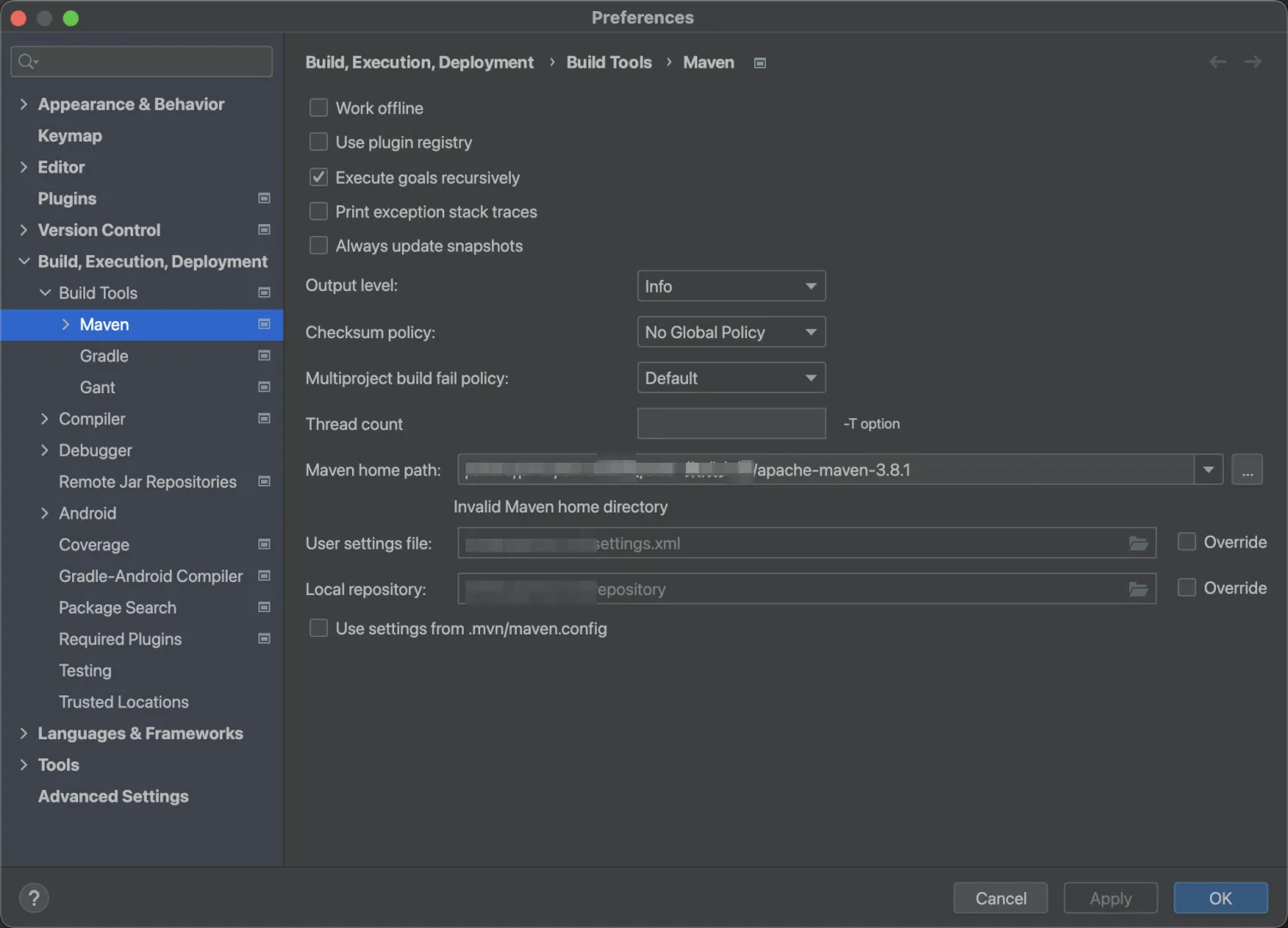
Open IntelliJ IDEA, choose IntelliJ IDEA > Settings > Build,Execution,Development > Build Tools > Maven, and set the Maven home path to the installation path of Maven.
-
Procedure
- Obtain the connection information of seekdb.
- Modify the downloaded project sample code.
- Run the project sample code.
Create a Java application
Step 1: Obtain the database connection string
Contact the deployment personnel or administrator of seekdb to obtain the corresponding database connection string, for example:
mysql -h$host -P$port -u$user_name -p$password -D$database_name
Parameter description:
host: the IP address for connecting to seekdb. Replace this parameter with the actual IP address. You can also use the local IP address or 127.0.0.1.port: the port for connecting to seekdb. Replace this parameter with the actual port. The default value is 2881. You can customize this value when you deploy seekdb.$database_name: the name of the database to be accessed.$user_name: the username for connecting to seekdb. The format isusername.$password: the password for the account.
For more information about the connection string, see Connect to seekdb by using a MySQL client.
Here is an example:
mysql -hxxx.xxx.xxx.xxx -P2881 -uroot -p****** -Dtest -A
Step 2: Modify the sample code
-
Decompress the downloaded sample project.
-
Open IntelliJ IDEA, choose File > Open, and add the sample project file.
-
Based on the connection string obtained in Step 1, modify the following database connection parameters in the JDBCTest file in the JDBCDemo > src > main > java directory.
Modify the database connection parameters in the code. For more information about the fields and concatenation method, see the following table. The values of the fields are obtained from the database connection string obtained in Step 1.
connection = DriverManager.getConnection("jdbc:mysql://{host}:{port}/{dbname}?user={username}&password={******}")

//Example
jdbc:mysql://100.88.xx.xx:2881/test?user=r***&password=******`-
host: the value of the
-hparameter, which specifies the IP address for connecting to seekdb. -
port: the value of the
-Pparameter, which specifies the port for connecting to seekdb. -
dbname: the value of the
-Dparameter, which specifies the name of the database to be accessed. -
username: the value of the
-uparameter, which specifies the username for connecting to seekdb. The default value is 'root'. -
password: the value of the
-pparameter, which specifies the password for the account.
Here is an example of the modified code:
//Example
Connection connection = DriverManager.getConnection("jdbc:mysql://100.88.xx.xx:2881/test?user=r***&password=******");tipIf you use MySQL Connector/J 8.x, do not include
#in the username or password. Otherwise, an error will be returned when you run the sample project. -
After you install MySQL Connector/J 5.1.47 and configure the environment, you can use the following sample code in the Test.java file to connect to and use the database.
If you use MySQL Connector/J 8.x, replace com.mysql.jdbc.Driver with com.mysql.cj.jdbc.Driver in Class.forName("com.mysql.jdbc.Driver").
Here is the complete code:
import java.sql.Connection;
import java.sql.DriverManager;
import java.sql.ResultSet;
import java.sql.Statement;

public class JDBCTest {

    public static void main(String[] args) {
        try {
            //load driver
            Class.forName("com.mysql.jdbc.Driver"); //mysql-jdbc 5
//            Class.forName("com.mysql.cj.jdbc.Driver"); //mysql-jdbc 8

            //create connection
            Connection connection = DriverManager.getConnection("jdbc:mysql://127.0.0.1:2881/test?user=r***&password=");
            System.out.println("jdbc version : " + connection.getMetaData().getDriverVersion());
            Statement stmt = connection.createStatement();

            //create table
            stmt.execute("drop table if exists test");
            stmt.execute("create table test (id int, name varchar(25))");
            System.out.println("create table successfully");

            //insert data
            stmt.execute("insert into test values (1, 'aaa'),(2, 'bbb')");
            System.out.println("insert data successfully");

            //query data
            System.out.println("query data : ");
            ResultSet rs = stmt.executeQuery("select * from test");
            while (rs.next()) {
                System.out.println(rs.getString("id") + "\t" + rs.getString("name"));
            }

            //update data
            stmt.execute("update test set name = 'bbb' where id = 1");
            System.out.println("update data successfully");

            //query data after update
            System.out.println("query data after update : ");
            rs = stmt.executeQuery("select * from test");
            while (rs.next()) {
                System.out.println(rs.getString("id") + "\t" + rs.getString("name"));
            }

            //delete data
            stmt.execute("delete from test where id = 1");
            System.out.println("delete data successfully");

            //query data after delete
            System.out.println("query data after delete : ");
            rs = stmt.executeQuery("select * from test");
            while (rs.next()) {
                System.out.println(rs.getString("id") + "\t" + rs.getString("name"));
            }

            //drop table
            stmt.execute("drop table test");
            //close
            rs.close();
            stmt.close();
            connection.close();
        } catch (Exception e) {
            System.out.println("error!");
            e.printStackTrace();
        }
    }
}
Step 3: Run the application
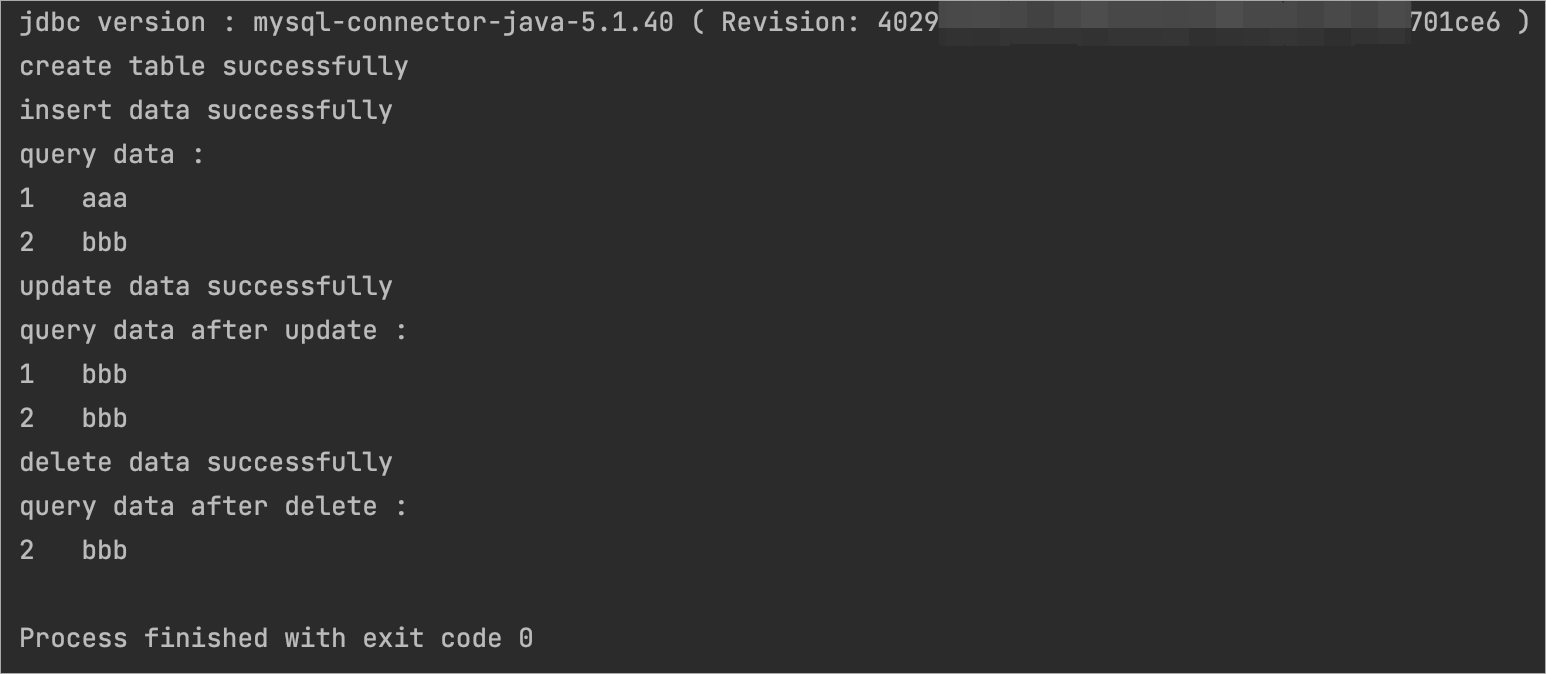
Run the sample project in IntelliJ IDEA. If the following result is returned, the database connection is successful and the sample project is executed correctly.
Project code
Click mysql-connector/j to download the project code, which is a compressed file named JDBCDemo.zip.
After decompressing the file, you will find a folder named JDBCDemo. The directory structure is as follows:
JDBCDemo
├── src
│   └── main
│       └── java
│           └── JDBCTest.java
└── pom.xml
File description:
src: the root directory for source code.main: the main code directory, containing the core logic of the application.java: the directory for Java source code.JDBCTest.java: the main class, containing logic for creating tables and inserting data.pom.xml: the configuration file for the Maven project, used to manage project dependencies and build settings.
Code in the pom.xml file
The pom.xml file is the configuration file of a Maven project. It defines the dependencies, plugins, and build rules of the project. Maven is a Java project management tool that can automatically download dependencies, compile, and package projects.
The code in the pom.xml file of this topic includes the following parts:
-
A file declaration statement.
This statement declares that the file is an XML file that uses XML version
1.0and character encodingUTF-8.Sample code:
<?xml version="1.0" encoding="UTF-8"?> -
The namespace and POM model version of the POM.
- The
xmlnsattribute specifies the POM namespace ashttp://maven.apache.org/POM/4.0.0. - The
xmlns:xsiattribute specifies the XML namespace ashttp://www.w3.org/2001/XMLSchema-instance. - The
xsi:schemaLocationattribute specifies the POM namespace ashttp://maven.apache.org/POM/4.0.0and the location of the POM XSD file ashttp://maven.apache.org/xsd/maven-4.0.0.xsd. - The
<modelVersion>element specifies the POM model version used by the POM file as4.0.0.
Sample code:
<project xmlns="http://maven.apache.org/POM/4.0.0"
         xmlns:xsi="http://www.w3.org/2001/XMLSchema-instance"
         xsi:schemaLocation="http://maven.apache.org/POM/4.0.0 http://maven.apache.org/xsd/maven-4.0.0.xsd">
  <modelVersion>4.0.0</modelVersion>

 <!-- Other configurations -->

</project> - The
-
Basic information.
- The
<groupId>element specifies the project group ascom.example. - The
<artifactId>element specifies the project name asJDBCDemo. - The
<version>element specifies the project version as1.0-SNAPSHOT.
Sample code:
    <groupId>org.example</groupId>
    <artifactId>JDBCDemo</artifactId>
<version>1.0-SNAPSHOT</version> - The
-
The components on which the project depends.
-
Add the
mysql-connector-javadependency library to interact with the database:infoThis part of the code defines that the project depends on MySQL Connector/J V5.1.40. For more information about other versions, see MySQL Connector/J.
- The
<groupId>element specifies the dependency group asmysql. - The
<artifactId>element specifies the dependency name asmysql-connector-java. - The
<version>element specifies the dependency version as5.1.40.
Sample code:
        <dependency>
            <groupId>mysql</groupId>
            <artifactId>mysql-connector-java</artifactId>
            <version>5.1.40</version>
</dependency> - The
-
JDBCTest.java code introduction
The JDBCTest.java file is part of the sample program and demonstrates how to use MySQL Connector/J to perform database operations. It first configures the database connection information, then creates a JDBCTest object to execute database operations. The code also includes examples of creating tables, inserting data, and querying data.
The code in the JDBCTest.java file in this topic mainly includes the following parts:
-
Import the Java classes required for using the JDBC API in the Java program.
- The
Connectionclass is used to establish a connection with the database. - The
DriverManagerclass is responsible for managing a set of JDBC drivers. - The
ResultSetclass is used to process data returned by SQL queries. - The
Statementclass is used to execute static SQL statements and return results.
Code:
import java.sql.Connection;
import java.sql.DriverManager;
import java.sql.ResultSet;
import java.sql.Statement; - The
-
Create a
JDBCTestclass and define themainmethod.- Define a public class named
JDBCTestas the entry point of the program. The class name must match the file name. - Define a public static method
mainas the starting point of the program. - Perform other database operations.
Code:
public class Main {
    public static void main(String[] args) {
        // Database connection information
        // Create a data source
        // Create a table
        // Insert data
        // Update data
        // Delete data
    }
} - Define a public class named
-
Define the database connection information.
- Use
Class.forName()to load and register the MySQL JDBC driver. - Use the
DriverManager.getConnection()method to define the URL, username, and password for connecting to the database. Replace$host,$port,$database_name,$user_name, and$passwordwith your actual database connection information.
Code:
    Class.forName("com.mysql.jdbc.Driver"); //mysql-jdbc 5
    //Class.forName("com.mysql.cj.jdbc.Driver"); //mysql-jdbc 8
    Connection connection = DriverManager.getConnection("jdbc:mysql://xx.xxx.xxx.xxx:2881/test?user=test@tt1&password=test");
Parameter description:
$host: the IP address for connecting to seekdb. Replace it with the actual IP address. You can also use the local IP address 127.0.0.1.$port: the port for connecting to seekdb. Replace it with the actual port number. The default value is 2881, which can be customized when deploying seekdb.$database_name: the name of the database to be accessed.$user_name: the username for the connection. Format:username.$password: the password for the account.
- Use
-
Create and execute SQL statements.
    Statement stmt = connection.createStatement();
stmt.execute("..."); -
Create a table.
Code:
    // Drop the "test" table if it exists
    stmt.execute("drop table if exists test");
    // Create a new "test" table with two fields: an integer "id" and a string "name"
    stmt.execute("create table test (id int, name varchar(25))");
            // Print a message indicating that the table was created successfully
System.out.println("create table successfully"); -
Insert data.
Code:
    // Insert two rows of data into the "test" table
    stmt.execute("insert into test values (1, 'aaa'),(2, 'bbb')");
    // Print a message indicating that the data was inserted successfully
System.out.println("insert data successfully"); -
Query data.
Code:
    // Print a message indicating that data is being queried
    System.out.println("query data : ");
    // Execute the query SQL statement to retrieve all data from the "test" table
    ResultSet rs = stmt.executeQuery("select * from test");
    // Traverse the result set
    while (rs.next()) {
    // Print the "id" and "name" fields of each data record
System.out.println(rs.getString("id") + "\t" + rs.getString("name")); -
Update data.
Code:
    // Update the "name" field of the record with id 1 in the "test" table to 'bbb'
    stmt.execute("update test set name = 'bbb' where id = 1");
    // Print a message indicating that the data was updated successfully
System.out.println("update data successfully"); -
Delete data.
Code:
    // Drop the "test" table
    stmt.execute("drop table test");
    // Close the result set, statement, and database connection
    rs.close();
    stmt.close();
connection.close(); -
Exception handling.
Any exceptions that occur during the execution of the above database operations will be caught, and error messages and stack trace details will be printed.
Code:
    } catch (Exception e) {
    System.out.println("error!");
    e.printStackTrace();
    }
Complete code
pom.xml
<?xml version="1.0" encoding="UTF-8"?>
<project xmlns="http://maven.apache.org/POM/4.0.0"
         xmlns:xsi="http://www.w3.org/2001/XMLSchema-instance"
         xsi:schemaLocation="http://maven.apache.org/POM/4.0.0 http://maven.apache.org/xsd/maven-4.0.0.xsd">
    <modelVersion>4.0.0</modelVersion>

    <groupId>org.example</groupId>
    <artifactId>JDBCDemo</artifactId>
    <version>1.0-SNAPSHOT</version>

    <properties>
        <maven.compiler.source>8</maven.compiler.source>
        <maven.compiler.target>8</maven.compiler.target>
    </properties>

    <dependencies>
        <dependency>
            <groupId>mysql</groupId>
            <artifactId>mysql-connector-java</artifactId>
            <version>5.1.40</version>
        </dependency>
        <!--        <dependency>-->
        <!--            <groupId>com.mysql</groupId>-->
        <!--            <artifactId>mysql-connector-j</artifactId>-->
        <!--            <version>8.0.33</version>-->
        <!--        </dependency>-->
    </dependencies>
</project>
Main.java
import java.sql.Connection;
import java.sql.DriverManager;
import java.sql.ResultSet;
import java.sql.Statement;

public class JDBCTest {

    public static void main(String[] args) {
        try {
            //load driver
            Class.forName("com.mysql.jdbc.Driver"); //mysql-jdbc 5
//            Class.forName("com.mysql.cj.jdbc.Driver"); //mysql-jdbc 8

            //create connection
            Connection connection = DriverManager.getConnection("jdbc:mysql://{host}:{port}/{dbname}?user={username}&password={******}");
            System.out.println("jdbc version : " + connection.getMetaData().getDriverVersion());
            Statement stmt = connection.createStatement();

            //create table
            stmt.execute("drop table if exists test");
            stmt.execute("create table test (id int, name varchar(25))");
            System.out.println("create table successfully");

            //insert data
            stmt.execute("insert into test values (1, 'aaa'),(2, 'bbb')");
            System.out.println("insert data successfully");

            //query data
            System.out.println("query data : ");
            ResultSet rs = stmt.executeQuery("select * from test");
            while (rs.next()) {
                System.out.println(rs.getString("id") + "\t" + rs.getString("name"));
            }

            //update data
            stmt.execute("update test set name = 'bbb' where id = 1");
            System.out.println("update data successfully");

            //query data after update
            System.out.println("query data after update : ");
            rs = stmt.executeQuery("select * from test");
            while (rs.next()) {
                System.out.println(rs.getString("id") + "\t" + rs.getString("name"));
            }

            //delete data
            stmt.execute("delete from test where id = 1");
            System.out.println("delete data successfully");

            //query data after delete
            System.out.println("query data after delete : ");
            rs = stmt.executeQuery("select * from test");
            while (rs.next()) {
                System.out.println(rs.getString("id") + "\t" + rs.getString("name"));
            }

            //drop table
            stmt.execute("drop table test");
            //close
            rs.close();
            stmt.close();
            connection.close();
        } catch (Exception e) {
            System.out.println("error!");
            e.printStackTrace();
        }
    }
}
Best Practices
Batch operations
Use batch processing to improve performance:
PreparedStatement pstmt = connection.prepareStatement("INSERT INTO test VALUES (?, ?)");
for (int i = 0; i < 1000; i++) {
    pstmt.setInt(1, i);
    pstmt.setString(2, "name" + i);
    pstmt.addBatch();
}
pstmt.executeBatch();
Prepared statements
Use prepared statements to prevent SQL injection:
PreparedStatement pstmt = connection.prepareStatement("SELECT * FROM test WHERE id = ?");
pstmt.setInt(1, 1);
ResultSet rs = pstmt.executeQuery();
FAQ
1. Connection timeout
Configure the connection timeout parameter:
jdbc:mysql://host:port/database?connectTimeout=30000&socketTimeout=60000
2. Character set
Set the correct character set:
jdbc:mysql://host:port/database?characterEncoding=utf8&useUnicode=true
3. SSL connection
Enable SSL connection:
jdbc:mysql://host:port/database?useSSL=true&requireSSL=true
4. Special characters in the account password
If the account password contains special characters (such as #), URL encoding is required:
String encodedPassword = URLEncoder.encode(password, "UTF-8");
When using MySQL Connector/J 8.x, avoid using the # character in the account password, as it may cause the connection to fail.
More information
For more information about how to create a Java application, see Java Sample Application.