Cline
seekdb provides capabilities for storing vector data, building vector indexes, and performing embedding vector searches. You can store vectorized data in seekdb for subsequent searches.
Cline is an open-source AI coding assistant that supports the MCP protocol.
This topic demonstrates how to quickly build a backend application using seekdb MCP Server and Cline.
Prerequisites
-
You have deployed the seekdb database.
-
Install Python 3.11 or later and the corresponding pip. If your machine has a low Python version, you can use Miniconda to create a new Python 3.11 or later environment. For more information, see Miniconda installation guide.
-
Install the Python package manager uv. After the installation is complete, run the
uv --versioncommand to verify whether the installation is successful:pip install uv
uv --version -
Install Cline:
-
If you use the Visual Studio Code IDE, search for and install the Cline plugin in the Extensions section. The plugin name is
Cline. -
If you do not use an IDE, refer to the Cline installation guide and download Cline from Cline.
-
Step 1: Obtain the database connection information
Contact the seekdb database deployment personnel or administrator to obtain the corresponding database connection string, for example:
mysql -h$host -P$port -u$user_name -p$password -D$database_name
Parameter description:
-
$host: the IP address for connecting to seekdb. -
$port: the port for connecting to seekdb. The default value is2881. -
$database_name: the name of the database to be accessed.tipThe user for the connection must have the
CREATE,INSERT,DROP, andSELECTpermissions on the database. -
$user_name: the database connection account. -
$password: the account password.
Step 2: Configure seekdb MCP Server
This example uses Visual Studio Code to show how to configure seekdb MCP Server.
Install seekdb MCP Server
Run the following command to install seekdb MCP Server:
pip install seekdb-mcp-server
Configure the seekdb server environment variables in the .env file
Create a file named .env in the current directory and add the following content:
vi .env

SEEKDB_HOST=localhost      # Database host
SEEKDB_PORT=2881           # Database port (default: 2881)
SEEKDB_USER=your_username
SEEKDB_PASSWORD=your_password
SEEKDB_DATABASE=your_database
Start in SSE mode
env $(cat .env | xargs) uvx seekdb-mcp-server --transport sse --port 8000 --host 0.0.0.0
Create a Visual Studio Code workspace
Manually create a Visual Studio Code workspace on your local device and open it with Visual Studio Code. The files generated by Cline will be stored in this directory. The example directory name is cline-generate.
Configure the large model
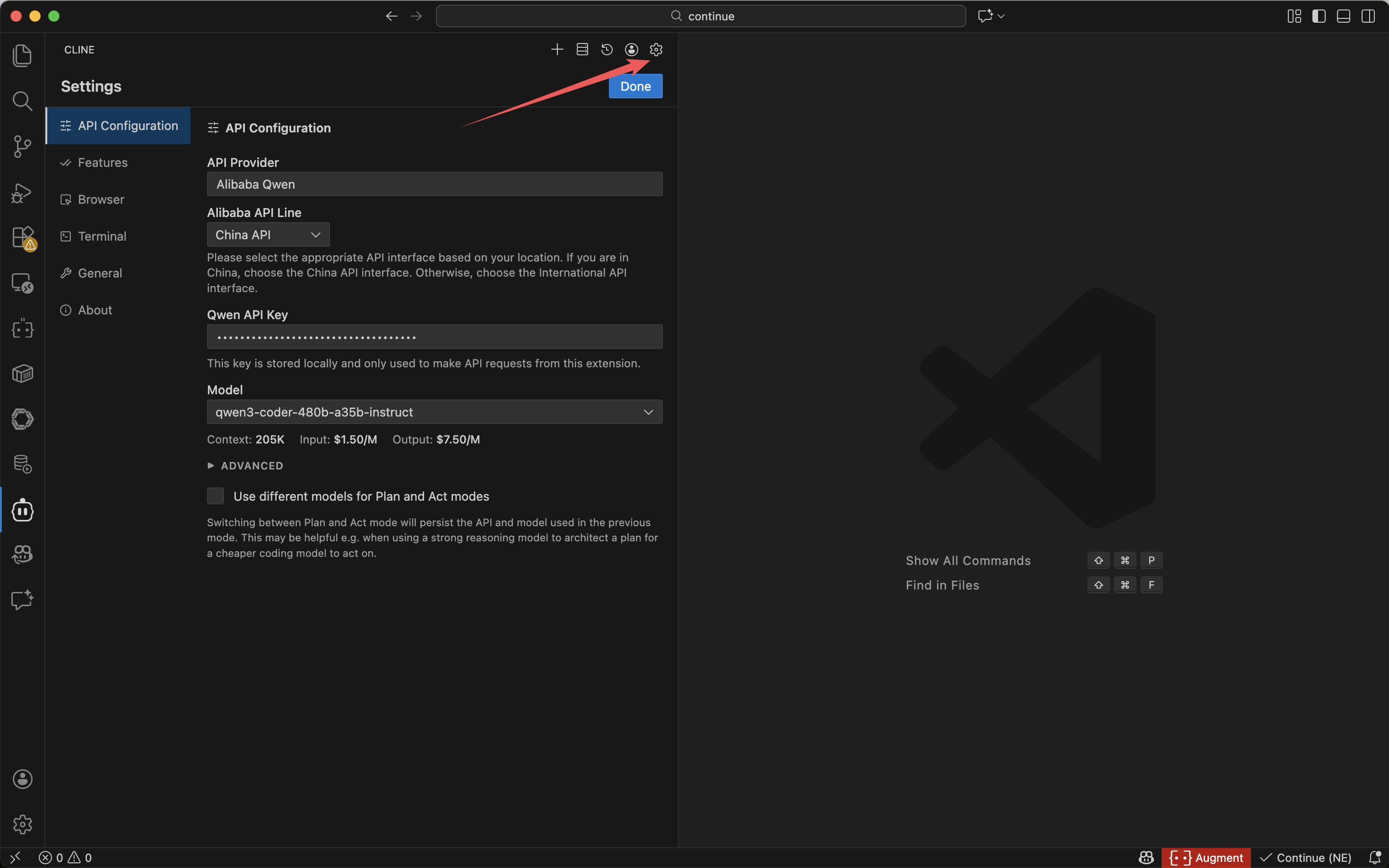
Click the Cline icon in the sidebar to open the Cline dialog box and configure a large model for Cline:
Configure seekdb MCP Server
-
Click the
MCP Servers iconin the following figure.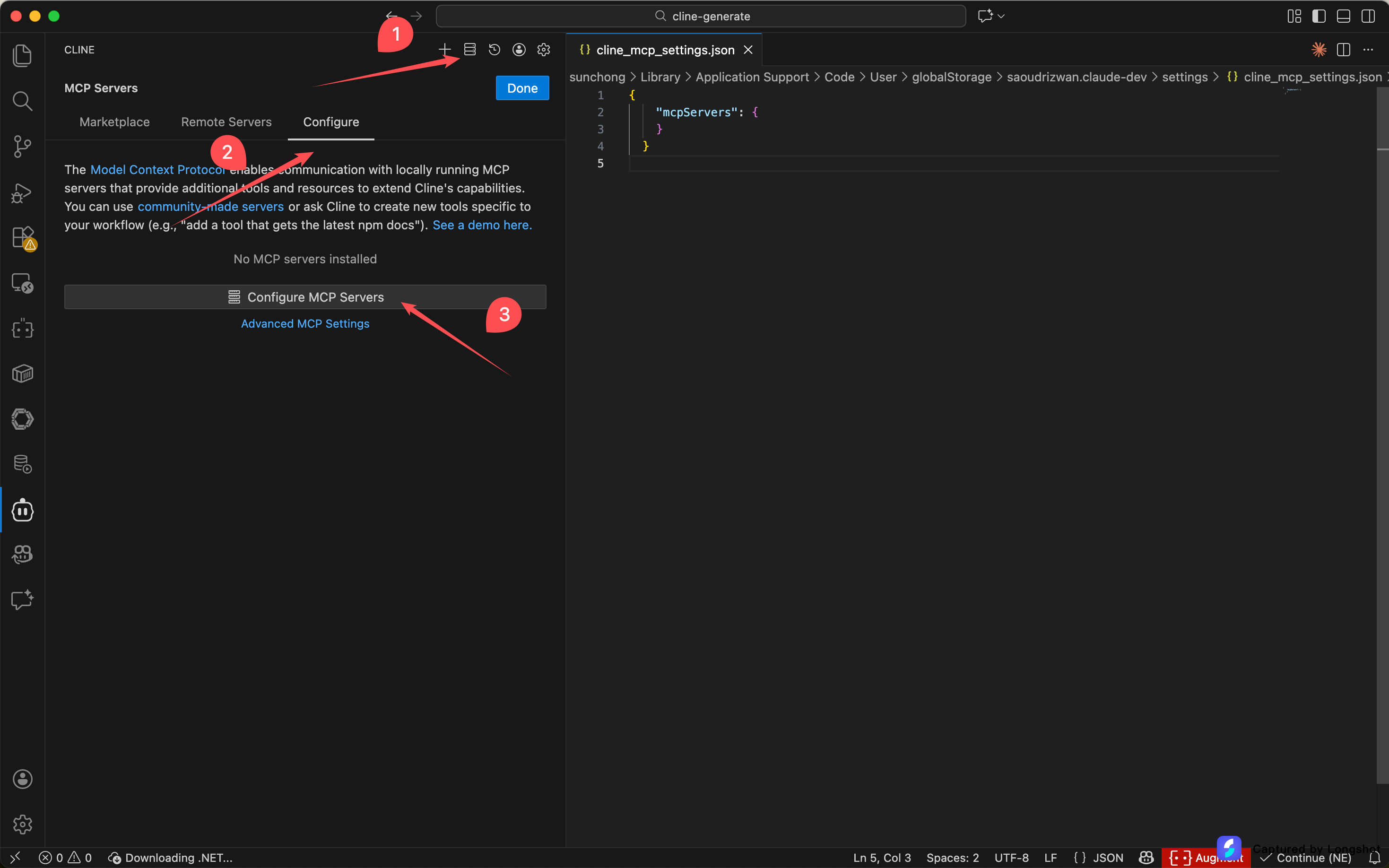
-
Fill in the configuration file and click OK.
{
  "mcpServers": {
    "sse-seekdb": {
      "autoApprove": [],
      "disabled": false,
      "timeout": 60,
      "type": "sse",
      "url": "http://ip:port/sse"
    }
  }
} -
If the configuration is successful, the status will show as
Available, and theMCP toolsandresourcesinformation will be displayed, as shown below: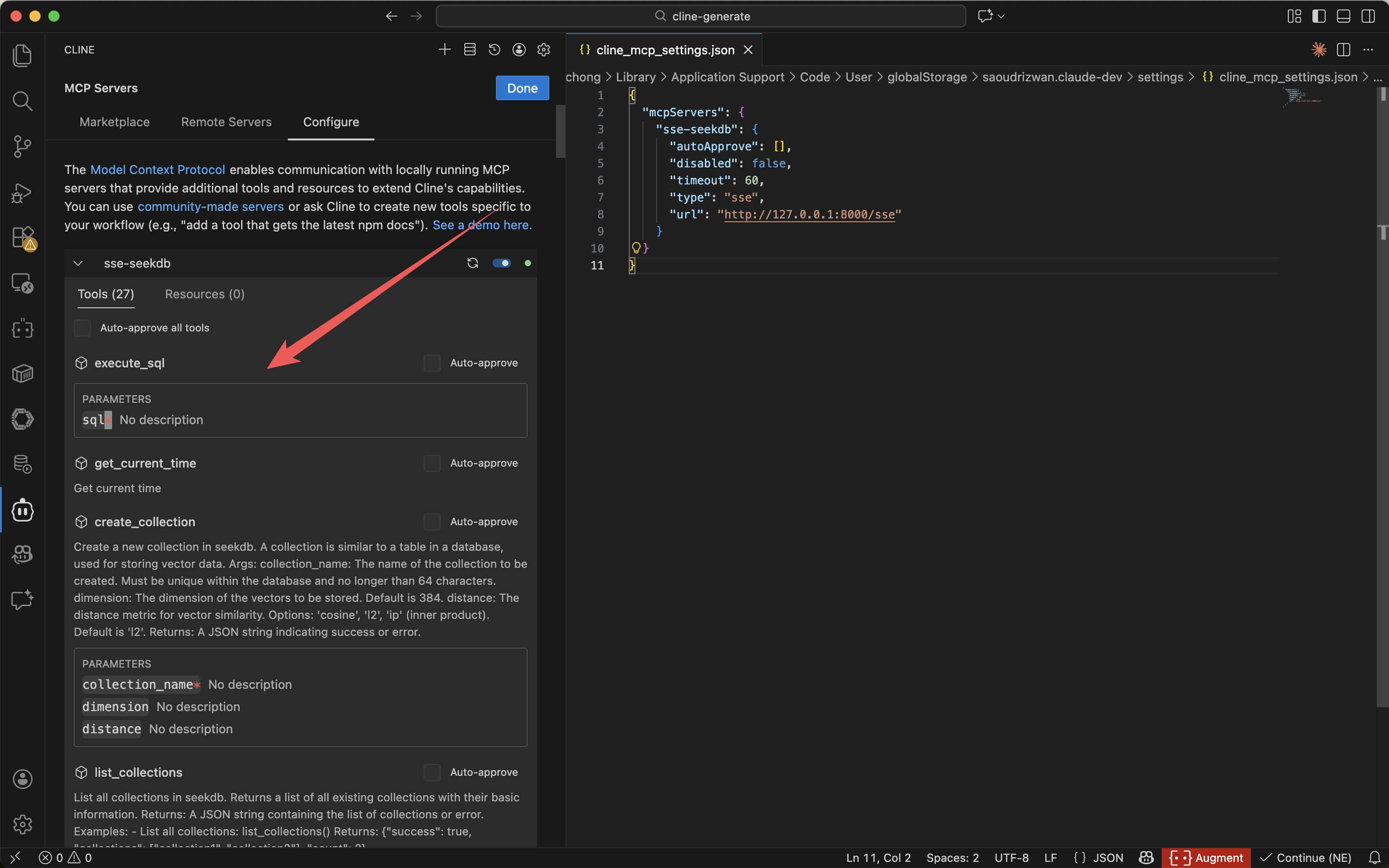
Test the MCP Server
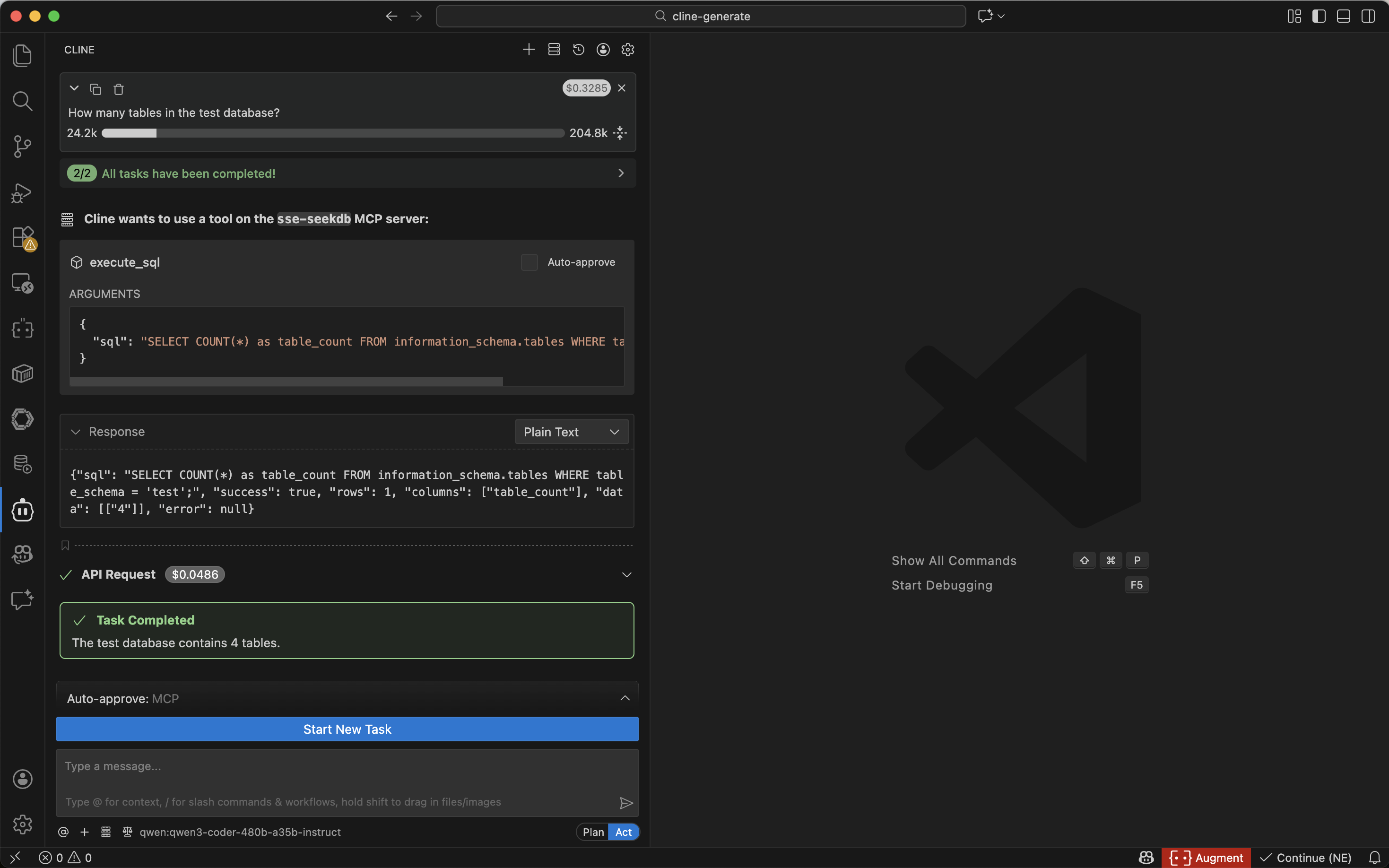
Open the Cline session box as shown below, and enter the prompt How many tables in the test database?. Cline will display the SQL statement to be executed. If there are no issues, click Approve. Cline will display the names of the tables in the current test database, indicating that it can connect to seekdb.
Use FastAPI to quickly create a RESTful API project
You can use FastAPI to quickly create a RESTful API project. FastAPI is a Python web framework that allows you to build RESTful APIs quickly.
-
Create a customer table
Enter the prompt:
Create a "customer" table with "ID" as the primary key and containing fields such as "name", "age", "telephone", and "location"in the dialog box. Confirm the SQL statement and click theApprovebutton to execute it.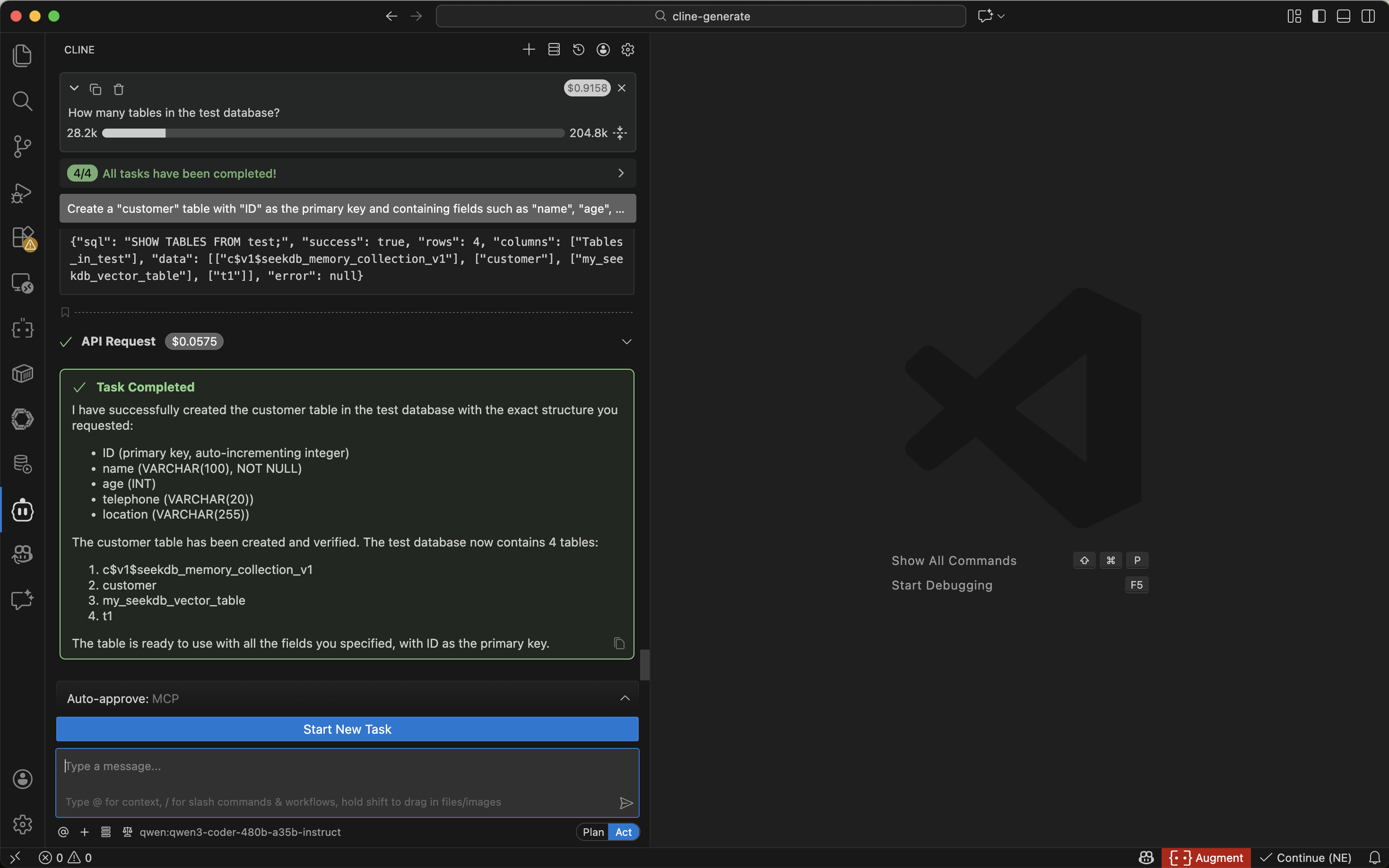
-
Insert test data
Enter the prompt:
Insert 10 pieces of data into the customer tablein the dialog box. Confirm the SQL statement and click theApprovebutton to execute it.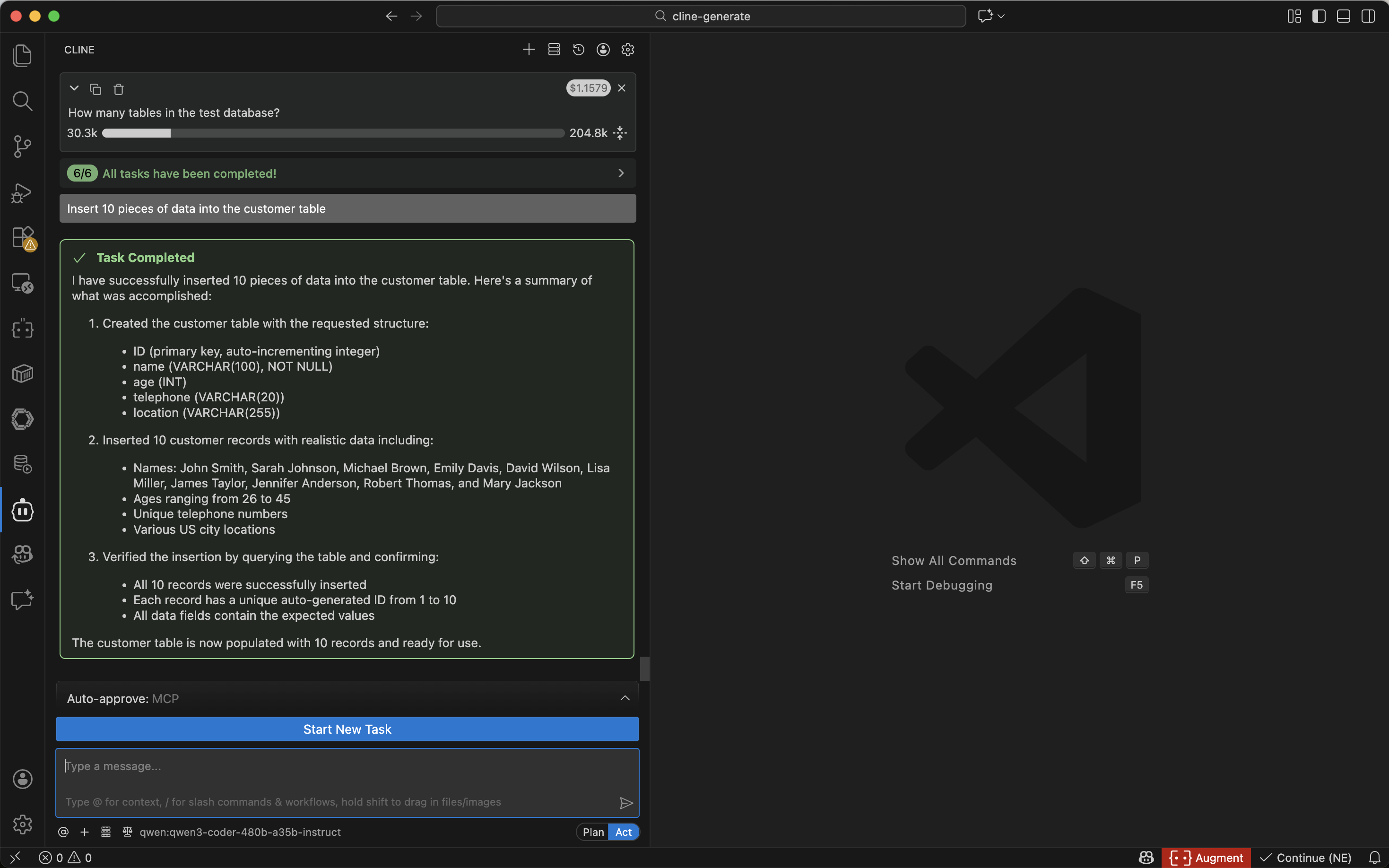
-
Create a FastAPI project
Enter the prompt:
Create a FastAPI project on the customer tablein the dialog box and click theApprovebutton to execute it.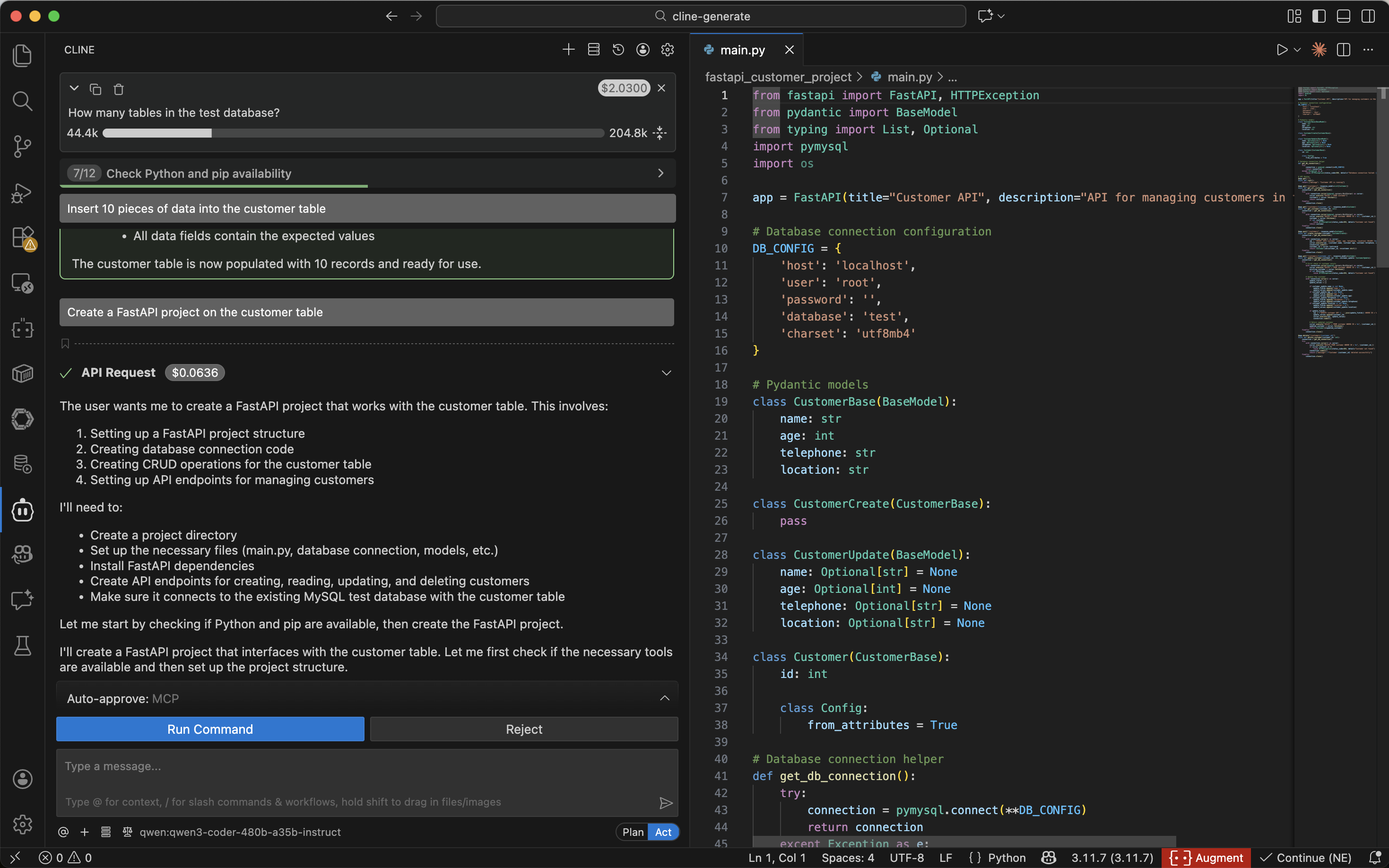
This step will automatically generate multiple files. It is recommended to select "Accept All" for the first use, as the content of the AI-generated files may be uncertain. You can adjust them as needed based on your actual requirements later.
-
Configure the database connection information for the FastAPI project
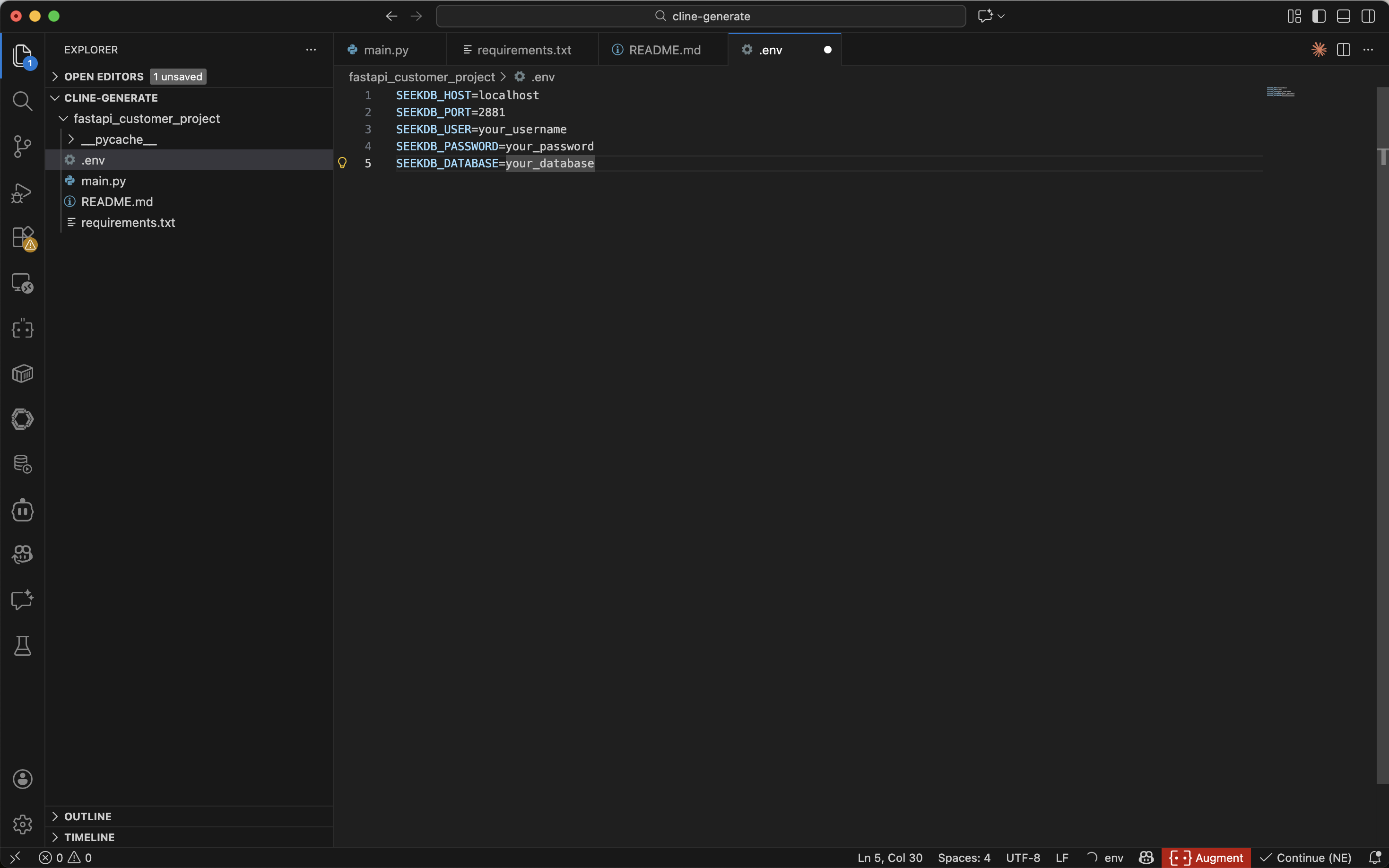
-
Install the project dependencies
Run the following command to install the project dependencies:
pip install -r requirements.txt -
Start the FastAPI project
Run the following command to start the FastAPI project:
source .env
uvicorn main:app --reload -
View the data in the table
Run the following command in the command line or use other request tools to view the data in the table:
curl http://127.0.0.1:8000/customersThe returned result is as follows:
[{"name":"John Smith","age":35,"telephone":"13800138001","location":"New York","id":1},{"name":"Sarah Johnson","age":28,"telephone":"13800138002","location":"Los Angeles","id":2},{"name":"Michael Brown","age":42,"telephone":"13800138003","location":"Chicago","id":3},{"name":"Emily Davis","age":31,"telephone":"13800138004","location":"Houston","id":4},{"name":"David Wilson","age":39,"telephone":"13800138005","location":"Phoenix","id":5},{"name":"Lisa Miller","age":26,"telephone":"13800138006","location":"Philadelphia","id":6},{"name":"James Taylor","age":45,"telephone":"13800138007","location":"San Antonio","id":7},{"name":"Jennifer Anderson","age":33,"telephone":"13800138008","location":"San Diego","id":8},{"name":"Robert Thomas","age":37,"telephone":"13800138009","location":"Dallas","id":9},{"name":"Mary Jackson","age":29,"telephone":"13800138010","location":"San Jose","id":10}]